SSO
Glasswall Halo has the ability to configure SSO with Azure Active Directory.
Single sign-on (SSO) is an authentication method that allows users to sign in using one set of credentials to multiple independent software systems. Using SSO means a user doesn't have to sign in to every application they use.
Here you can find information on how to configure SSO within your Glasswall Halo framework.
Prerequisites
- A Microsoft Enterprise Agreement for an Azure AD account is required to enable this SSO option.
- A domain name must be configured for the Clean Room (Portal Service) to use SSO authentication.
- Azure App registrations are required whenever SSO authentication using Azure AD needs to be enabled.
- There are 3 App registrations that need to be created:
cdrplatform-api-accesscdrplatform-portal-accesscdrplatform-portal-client
- The attached shell script helps to create these 3 app registrations. Enter the domain name you would like to use for the Portal as an argument to the shell script. For example, use cleanroom.glasswall.com as the domain name and run the script:
bash create-azure-app-registrations.sh cleanroom.glasswall.com
- The enterprise application
ar-halo-portal-clientneeds to be granted Admin consent.
Configuration
Enable Azure AD API authentication
To enable Azure AD based authentication, set configuration.AuthenticationScheme=Bearer and set tenant_id and domain_name variables while deploying the Helm chart.
tenant_id=""
domain_name=""
helm upgrade --install cdrplatform-api-access cdrplatform-api-access --wait --atomic \
  --set image.tag=141985 \
  --set image.repository="glasswallhub.azurecr.io/cdrplatform-api-access" \
  --set ingress.tls.enabled=true \
  --set ingress.tls.domain=${domain_name} \
  --set ingress.tls.secretName=tls-secret \
  --set configuration.AuthenticationScheme="Bearer" \
  --set configuration.Authentication__Schemes__Bearer__ValidAudiences__0=api://cdrplatform-api-access \
  --set configuration.Authentication__Schemes__Bearer__ValidIssuer=https://sts.windows.net/${tenant_id}/ \
  --set configuration.Authentication__Schemes__Bearer__Authority=https://login.microsoftonline.com/${tenant_id}/v2.0/
Configure SSO login for the Portal
- Set
portal_domain,portal_client_id,tenant_idvariables in the commands below and run them. Theportal_domainis the domain name used to setup TLS for the portal service as well as the same domain used in the cdrplatform-portal-client app registration. portal_client_idis the Application (client) ID of thecdrplatform-portal-clientapp registration created in the prerequisites step.tenant_idis of the tenant where App registrations are created.enabled_pagesvariable should be set toSystemSettings\,PolicySettings\,ValidationSettingswhen Policy API is deployed, otherwise set it toenabled_pages="SystemSettings".
portal_domain=""
portal_client_id=""
tenant_id=""
enabled_pages="SystemSettings\,PolicySettings\,ValidationSettings"
helm upgrade --install cdrplatform-portal cdrplatform-portal \
  --set image.repository=glasswallhub.azurecr.io/cdrplatform-portal \
  --set image.tag=141353 \
  --set ingress.tls.enabled=true \
  --set ingress.tls.domain=${portal_domain} \
  --set ingress.tls.secretName=tls-secret \
  --set configuration.BackendUrl="https://${portal_domain}" \
  --set configuration.EnabledPages=${enabled_pages} \
  --set configuration.OIDC.ProviderOptions.Authority="https://login.microsoftonline.com/${tenant_id}/v2.0" \
  --set configuration.OIDC.ProviderOptions.RedirectUri="https://${portal_domain}/authentication/login-callback" \
  --set configuration.OIDC.ProviderOptions.ClientId="${portal_client_id}" \
  --set configuration.OIDC.ProviderOptions.PostLogoutRedirectUri="https://${portal_domain}/authentication/logout-callback" \
  --atomic
Next, the Portal Access service needs to enable SSO authentication using Azure AD.
- Set
tenant_idandportal_domainvariables in the commands below and run them.
tenant_id=""
portal_domain=""
helm upgrade --install cdrplatform-portal-access cdrplatform-portal-access \
 --set image.repository=glasswallhub.azurecr.io/cdrplatform-portal-access \
 --set image.tag=140258 \
 --set ingress.tls.enabled=true \
 --set ingress.tls.domain=${portal_domain} \
 --set ingress.tls.secretName=tls-secret \
 --set configuration.AuthenticationScheme=Bearer \
 --set configuration.Authentication__Schemes__Bearer__ValidAudiences__0=api://cdrplatform-portal-access \
 --set configuration.Authentication__Schemes__Bearer__ValidIssuer=https://sts.windows.net/${tenant_id}/ \
 --set configuration.Authentication__Schemes__Bearer__Authority=https://login.microsoftonline.com/${tenant_id}/v2.0/ \
 --atomic
Learn more via Microsoft Application Management Documentation
User roles
To assign roles to Portal users, follow the instructions:
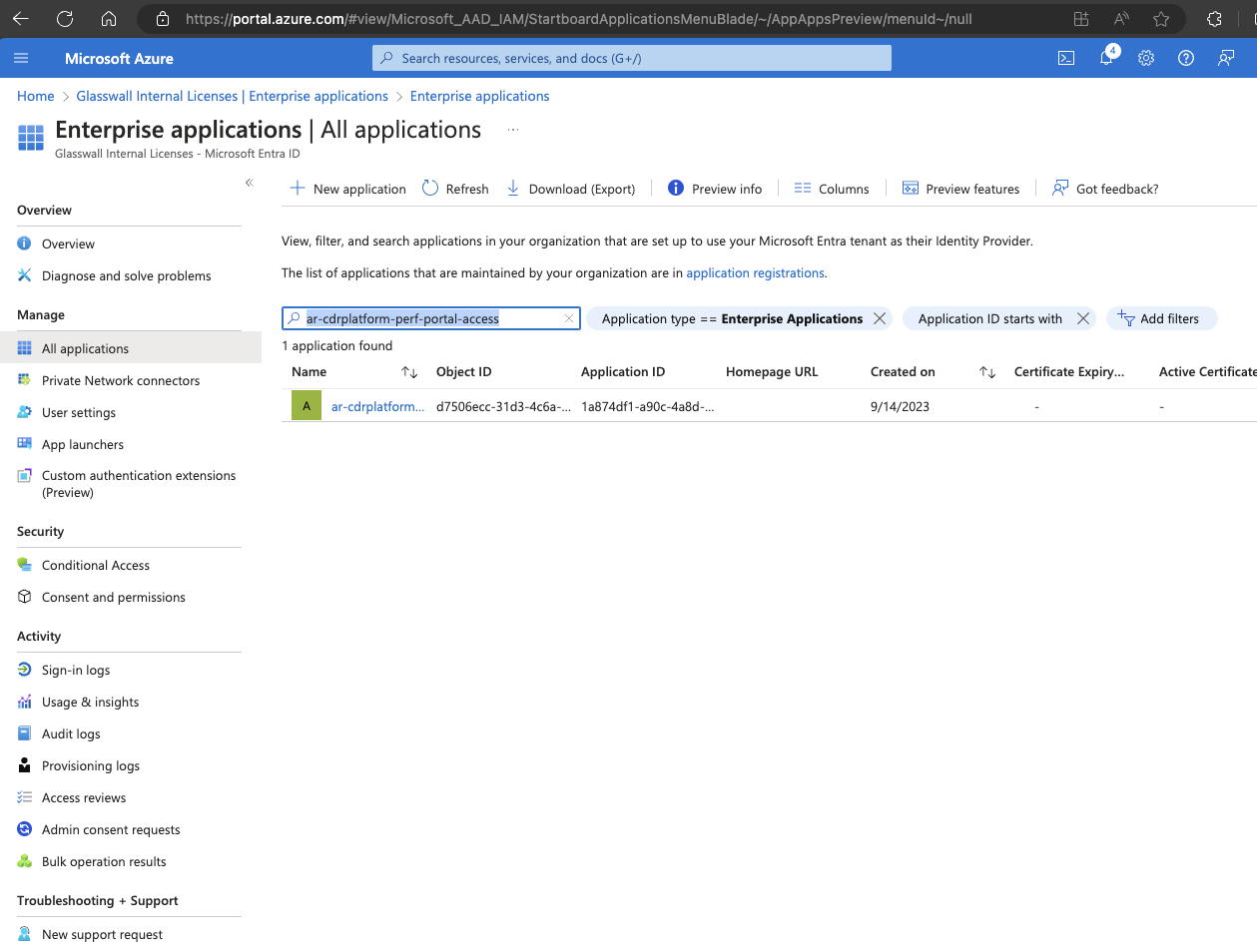
- Navigate to the Enterprise Application titled
ar-halo-portal-accesswithin Microsoft Entra ID. (The screenshots usesar-cdrplatform-perf-portal-accessas an example)
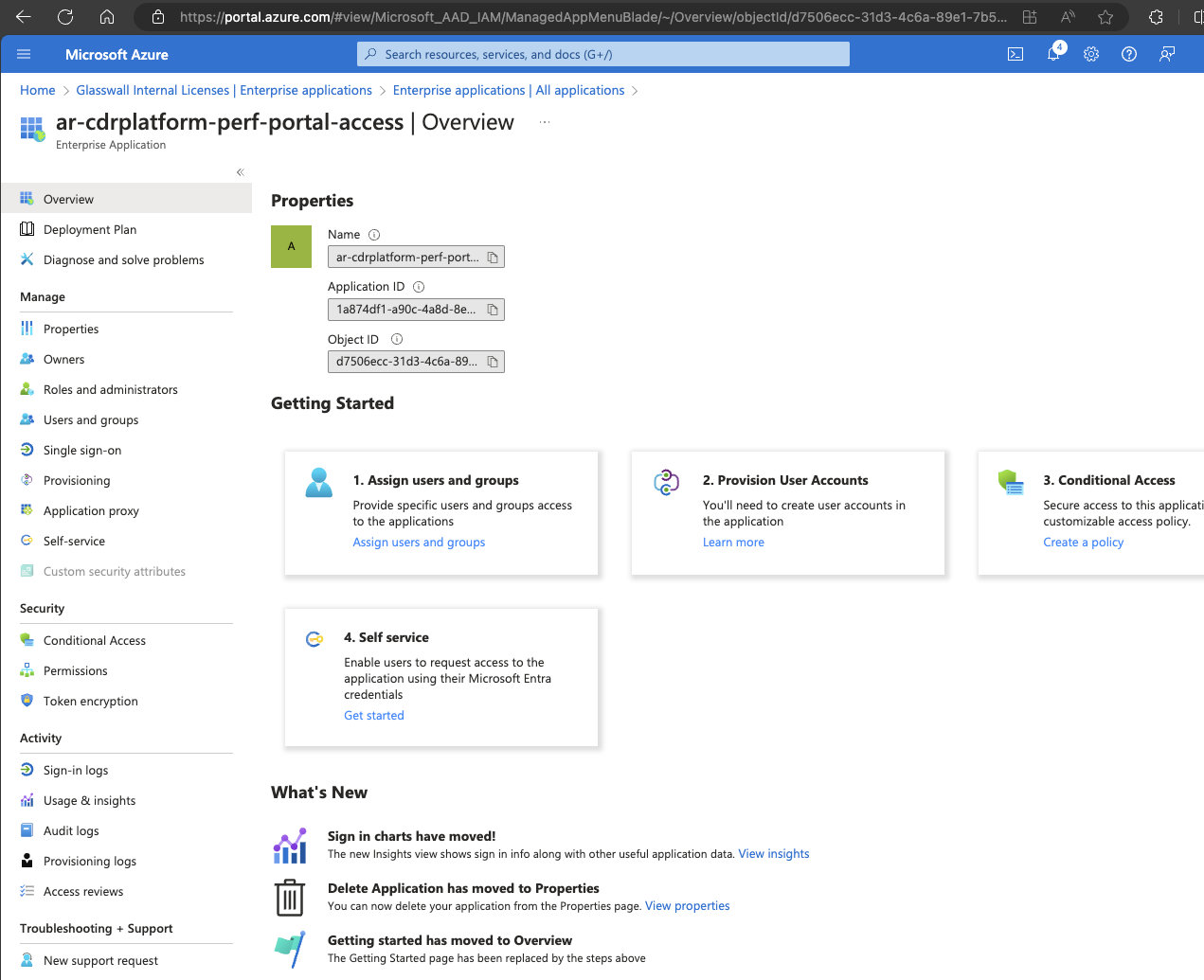
- Proceed to the Users and groups blade and select Add user/group.
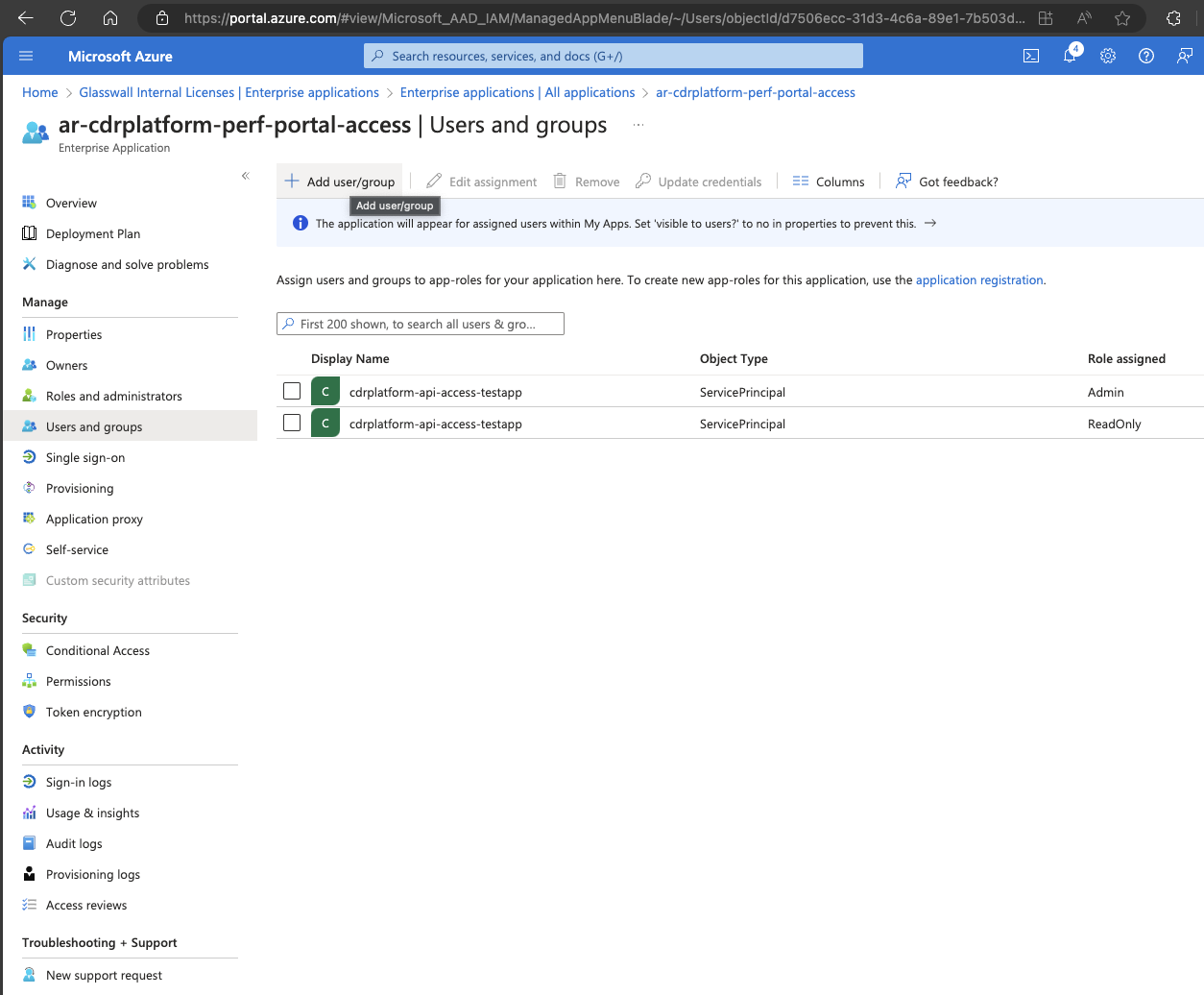
- Select the desired user or group, then select the suitable role. To understand more about the User Roles, refer to this page.
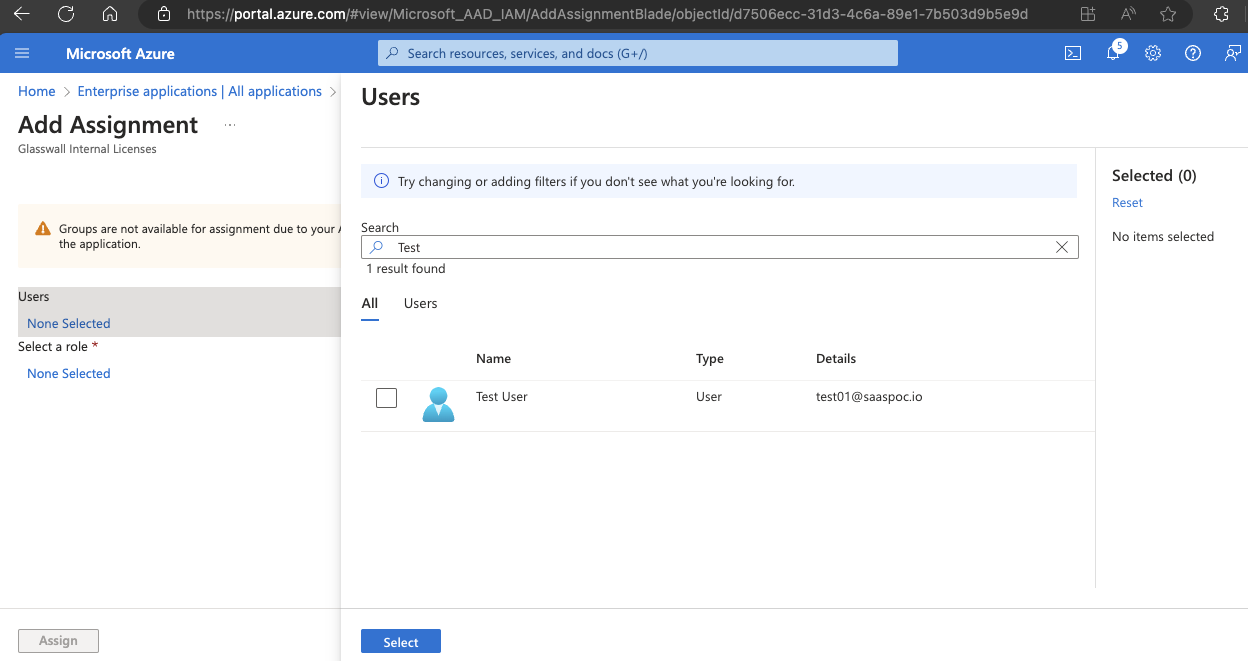
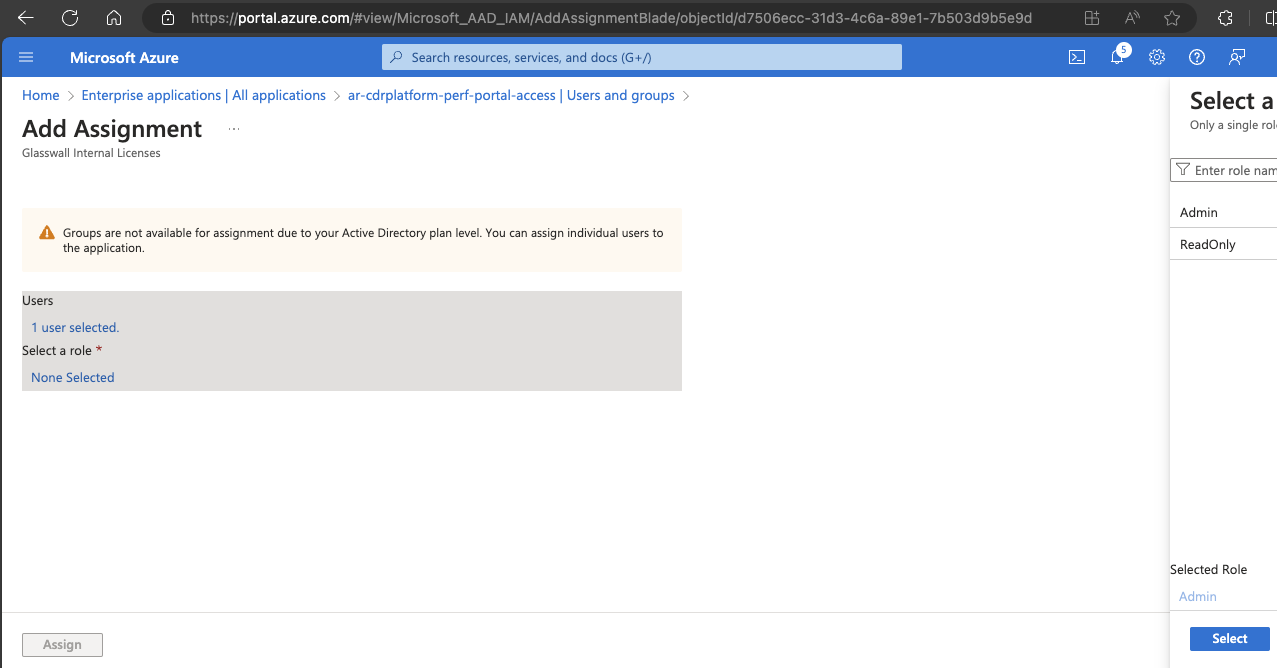
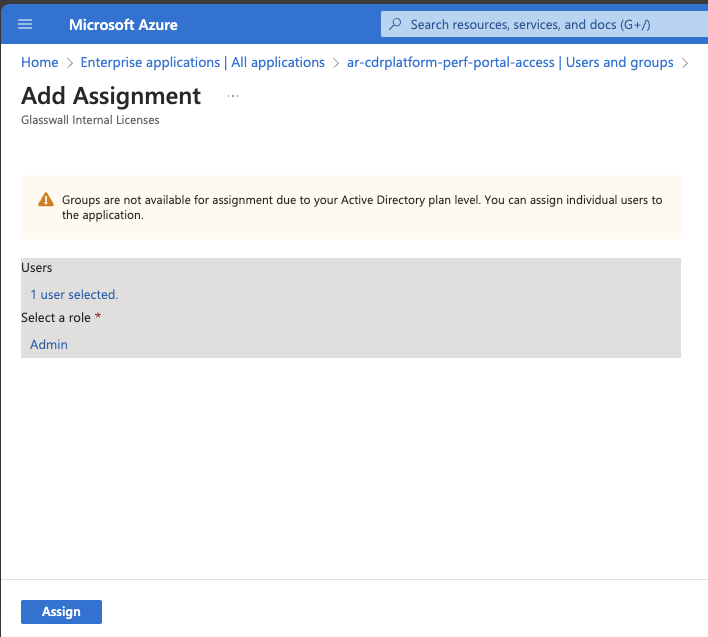
- Click
Assignto assign the chosen role to the selected user or group.
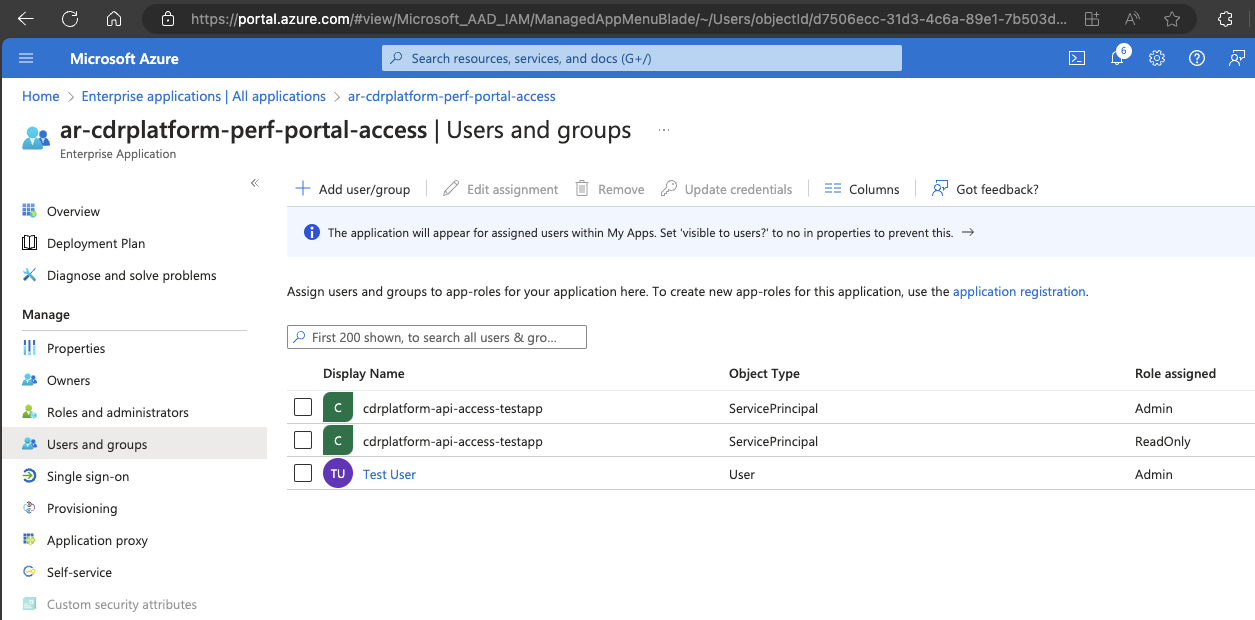
To assign roles to API users, follow the instructions:
- Navigate to the Enterprise Application titled
ar-halo-api-accessin the Microsoft Entra ID. - Proceed to
Users and groupsblade and click onAdd user/group. - Select the desired user or group, the select the suitabe role. To understand more about the User Roles, refer to this page.
- Click on the
Assignto assign the selected role to the selected user/group.