Hyper-V Deployment
NOTE: Tested on Hyper-V Version: 10.0.42621.1
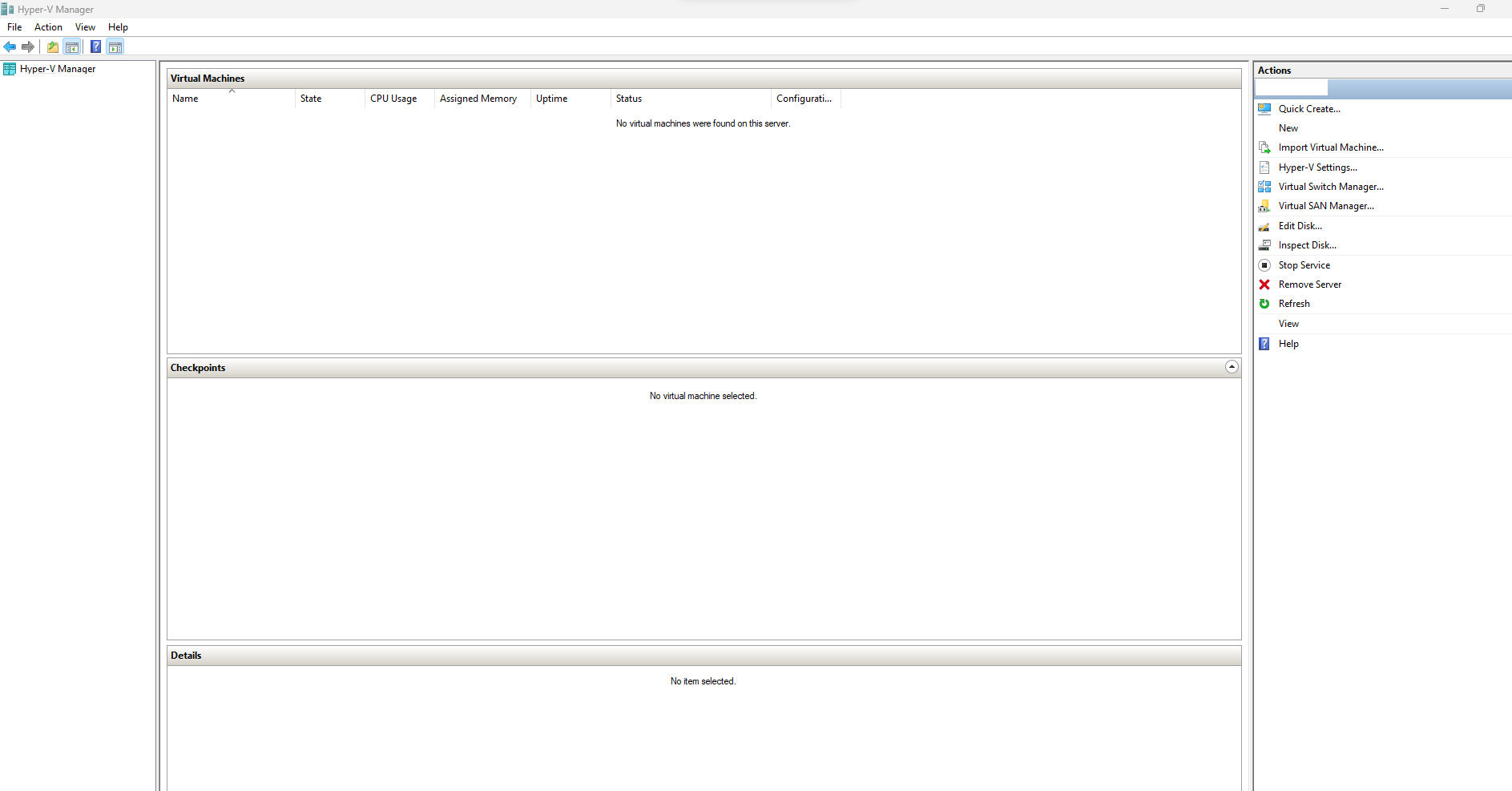
1. Open Hyper-V Manager
- Search for Hyper-V Manager from the search menu.
- Once located, select, and open.
2. Create a New Virtual Machine.
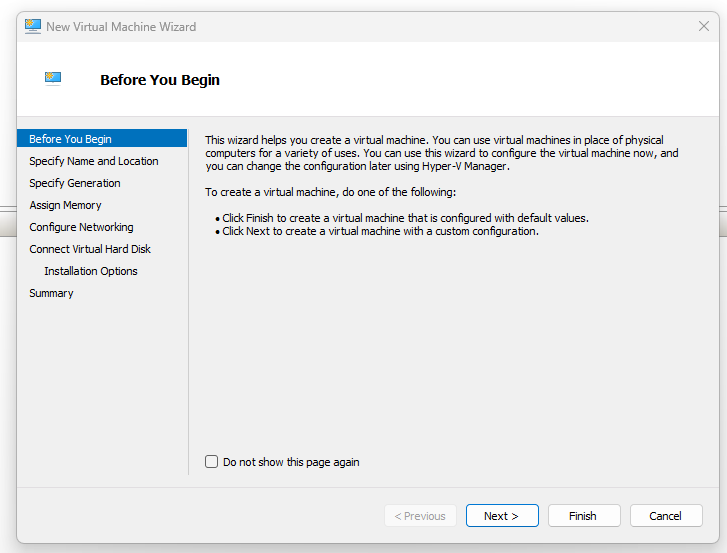
- In the Hyper-V Manager, in the right pane under Actions, click on New and then Virtual Machine. This will open up the New Virtual Machine Wizard.
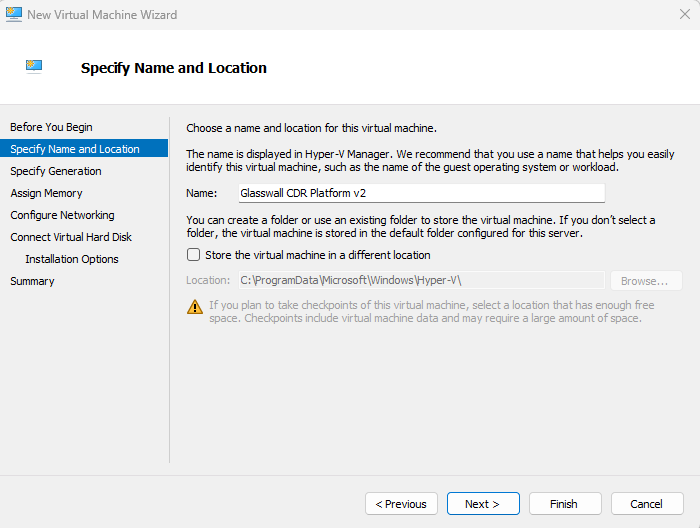
3. Specify the Name and Location
- In the New Virtual Machine Wizard, specify a name for your new virtual machine and choose a location where you want to store it (we left it as unchecked). The location needs to have sufficient storage space for the virtual machine and its virtual hard disk. After filling out the information, click next.
4. Specify Generation
- Please select Generation 1
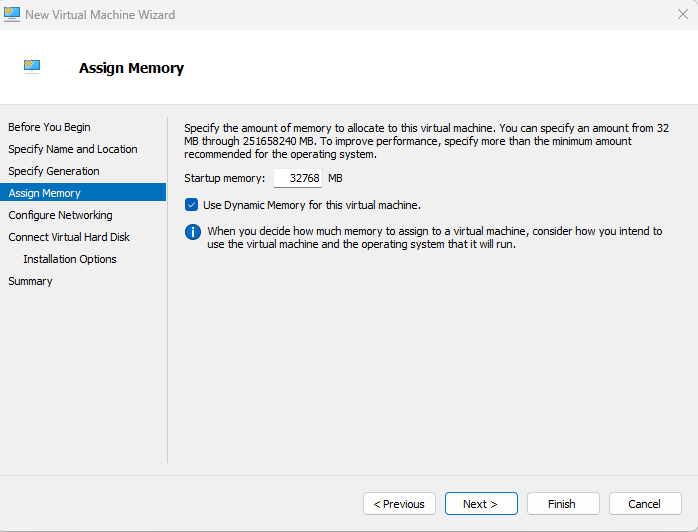
5. Assign Memory
- As per the initial prerequisites, please assign the memory amount allocated to the virtual machine to be sufficient and suitable for the Glasswall Halo.
- Minimum: 32GB (32768MB)
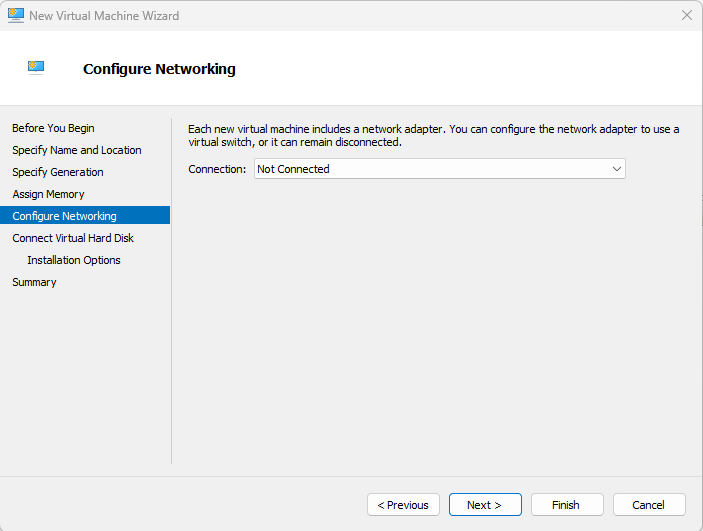
6. Select Network
- Per your network guidelines, please select the appropriate Network Connection
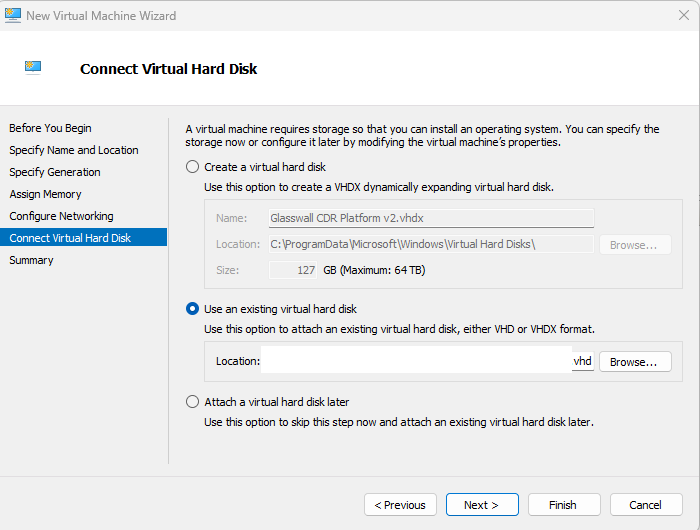
7. Connect Virtual Hard Disk
- Choose the option Use an existing virtual hard disk and then browse to the location where you have saved your Glasswall Glasswall Halo v2 VHD file. Once you have selected the file, click Next.
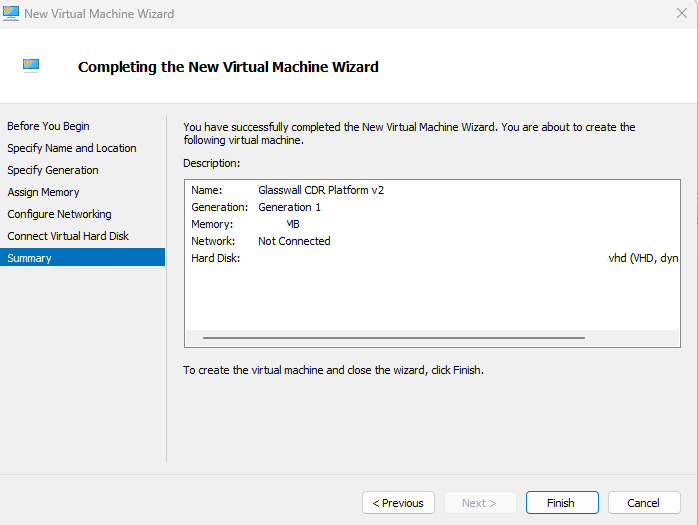
8. Complete the New Virtual Machine Wizard
- Review the setting you have chosen. If everything is accurate, click Finish to create the virtual machine.
9. Start the Virtual Machine
- Before starting the machine make sure the VM has assigned 16 CPUs configured in order to be able to run the services
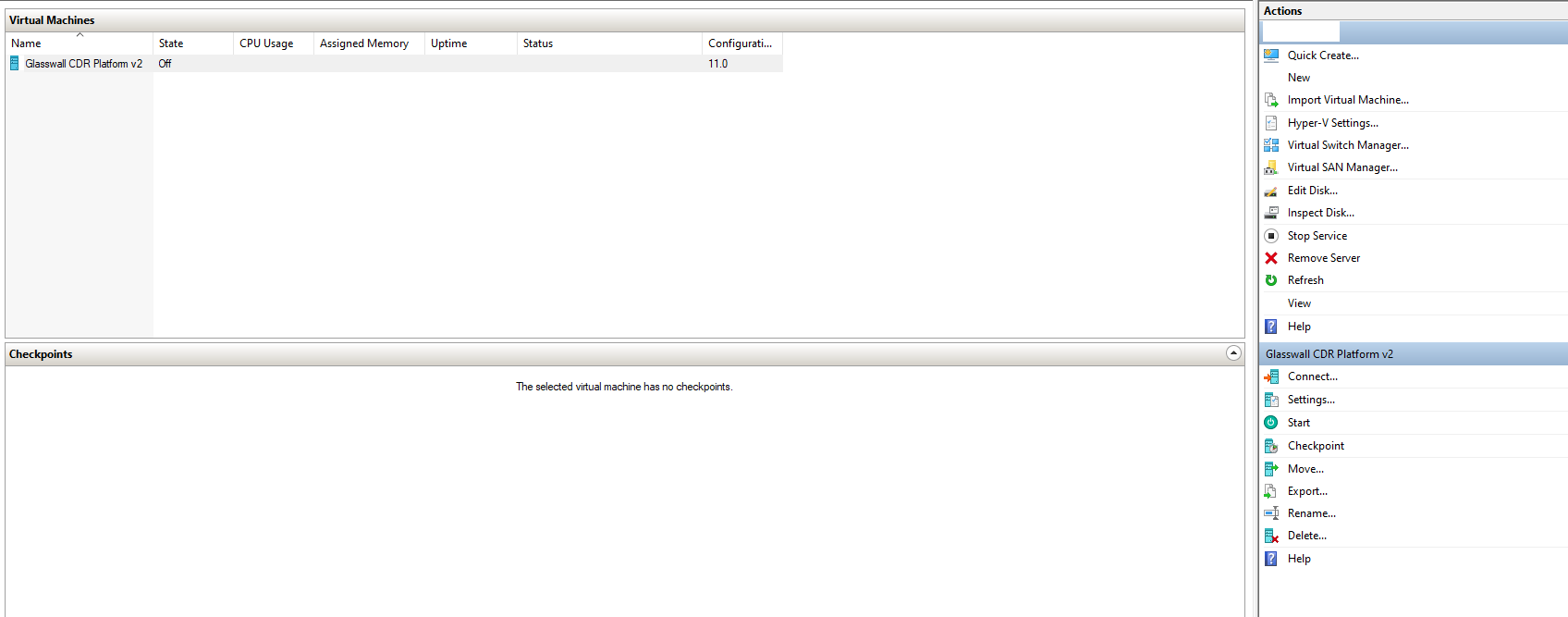
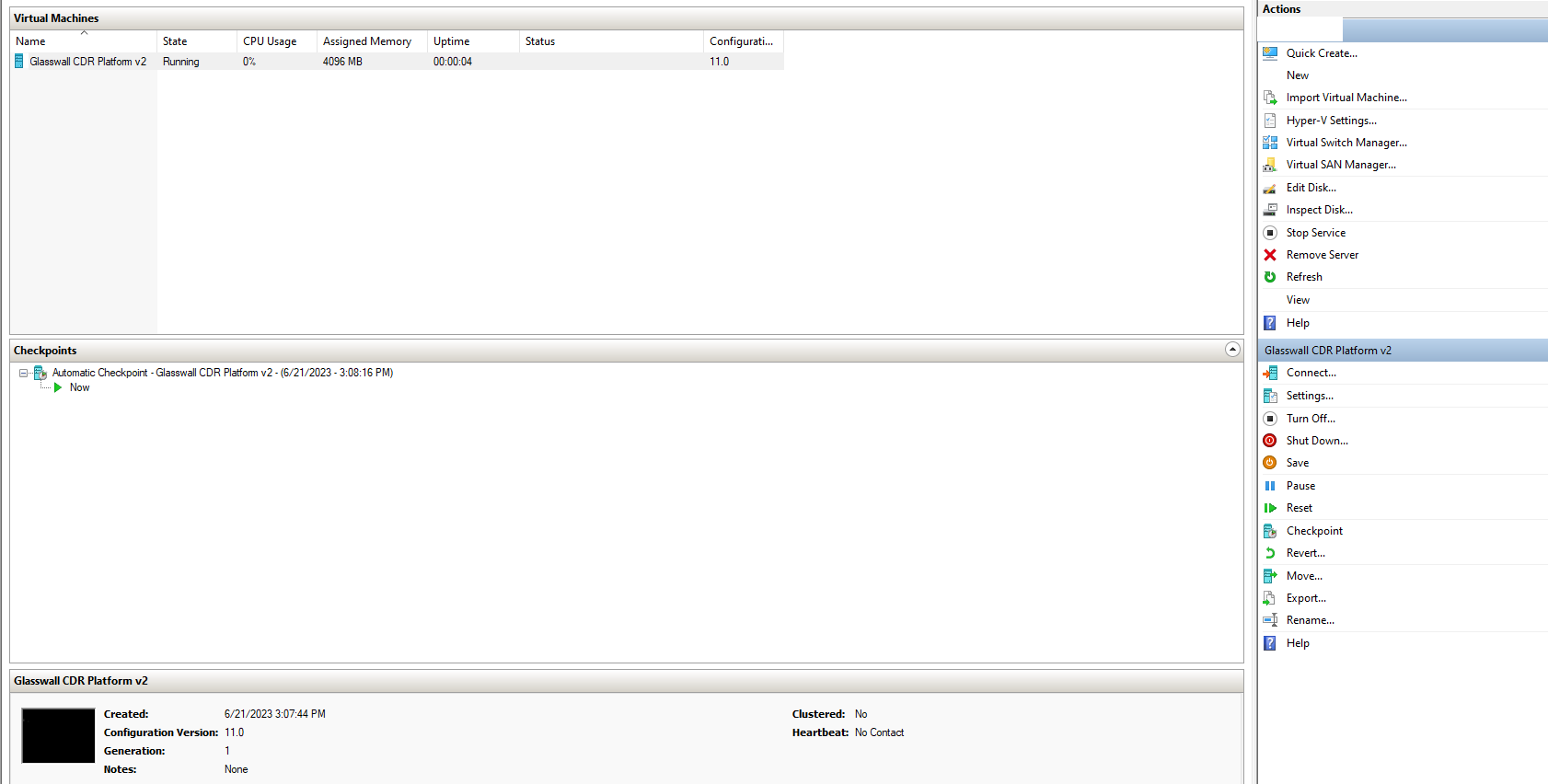
- In the Hyper-V Manager, under Virtual Machines, you will see your newly created Glasswall Glasswall Halo v2 virtual machine
- Right click on the virtual machine and choose start and or select the start button within the right-side window-pane
10. Started and Logging In
- Your newly created virtual machine will display a state of Running, which indicates ready to connect. Right Click and select Connect and or navigate to the right-side window-pane and select Connect.
11. Launch
- Login with the provided credentials
12. Password change
- For security measures it is requested to change the default password shared from Glasswall once you login
- Once the shared credentials are added, add a new password for the VM
WARNING: Password should be 15 char long, with a combination of uppercase letters, lowercase letters, numbers, and special charachters. Moreover, password should be without any repeating chars
13. NetworkManager Configuration
Note: If your network has a DHCP server, the VM will be assigned an IP address automatically and this step can be skipped.
Per your network defined configurations and boundaries
13.1 Before configuring the VMs network we need to know the MAC address of the ethernet the machine is running
- Run nmcli in the console to get which network the VM is using
13.2 Once we know which network to edit, run the following command to launch the Network Manager tool and select Edit a connection
nmtui
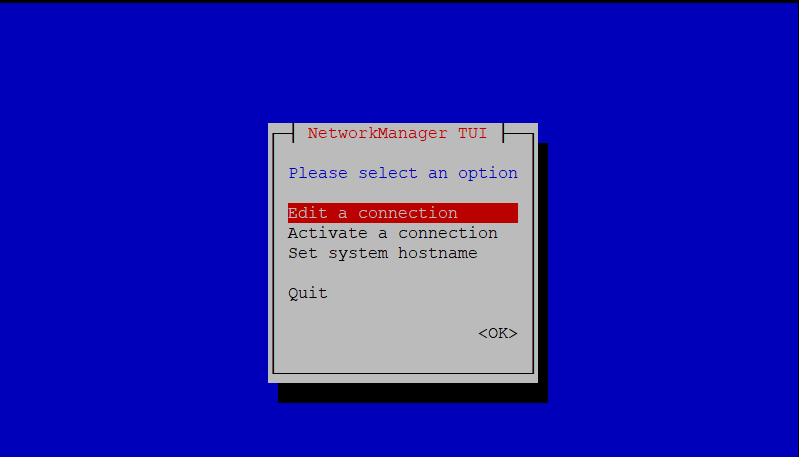
13.3 Based on your configuration requirements:
- Add Network Adapter or Edit Connection
- In our example we are gonna edit the connection the VM is using

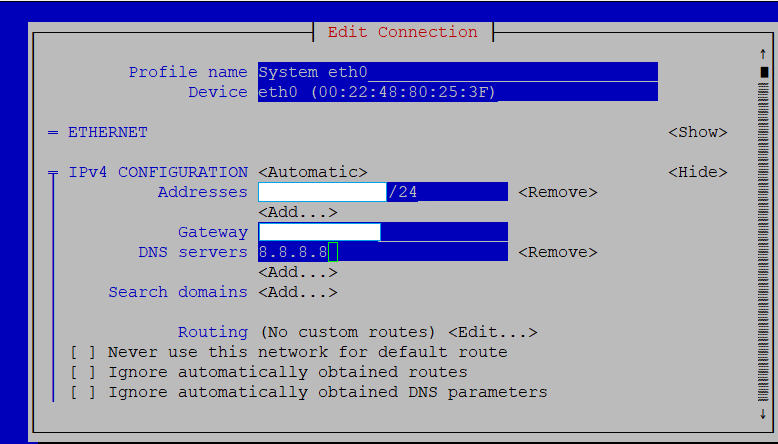
13.4 Select Show for the IPv4 Configuration, this will provide options to edit IP address, Gateway, DNS Server.
- Once IP address, Gateway and DNS is provided, scroll to the bottom and click OK
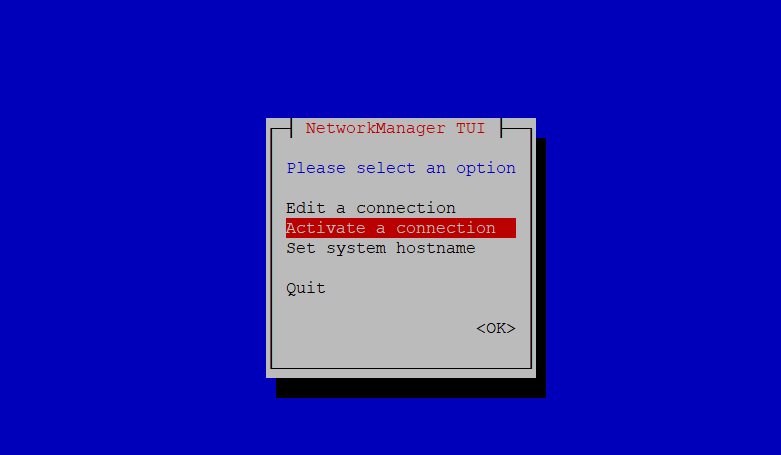
13.5 Go back to the main page of nmtui and select Activate a connection and ensure your connection is set to activated.

13.6 Exit and execute the following command:
sudo systemctl restart NetworkManager
14. Start the Glasswall Halo services
Note: If your network has a DHCP server, this step can be skipped as the RKE2 server will be started automatically by cloud init.
Proceed with executing the following command to start the Glasswall Halo:
- Command:
bash start_halo.sh
- Confirm all of the Glasswall Halo services and Pods are running with the following command:
kubectl get pods
NOTE: There might be some old pods in fail state present. This won't have any effect in the VMs functionality
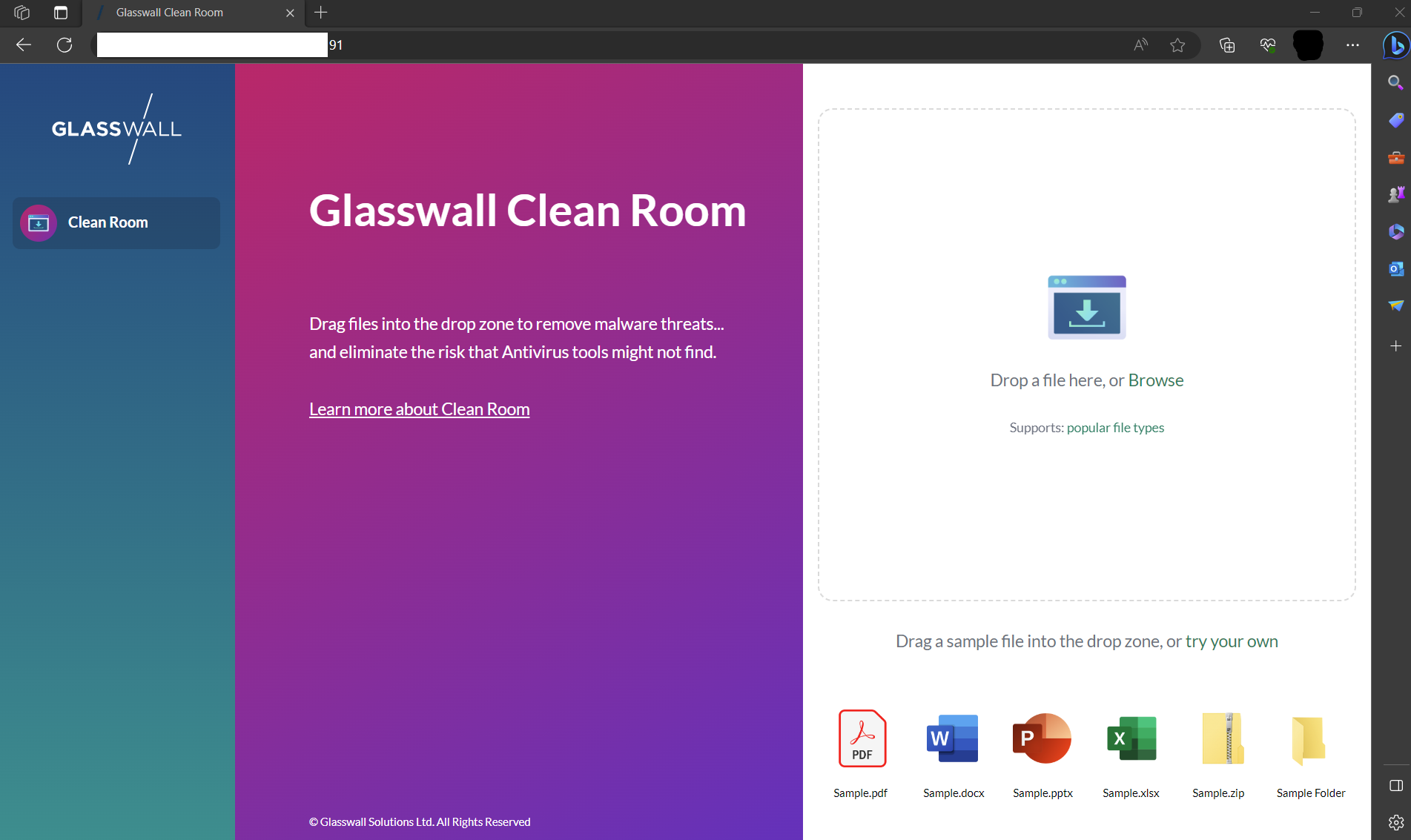
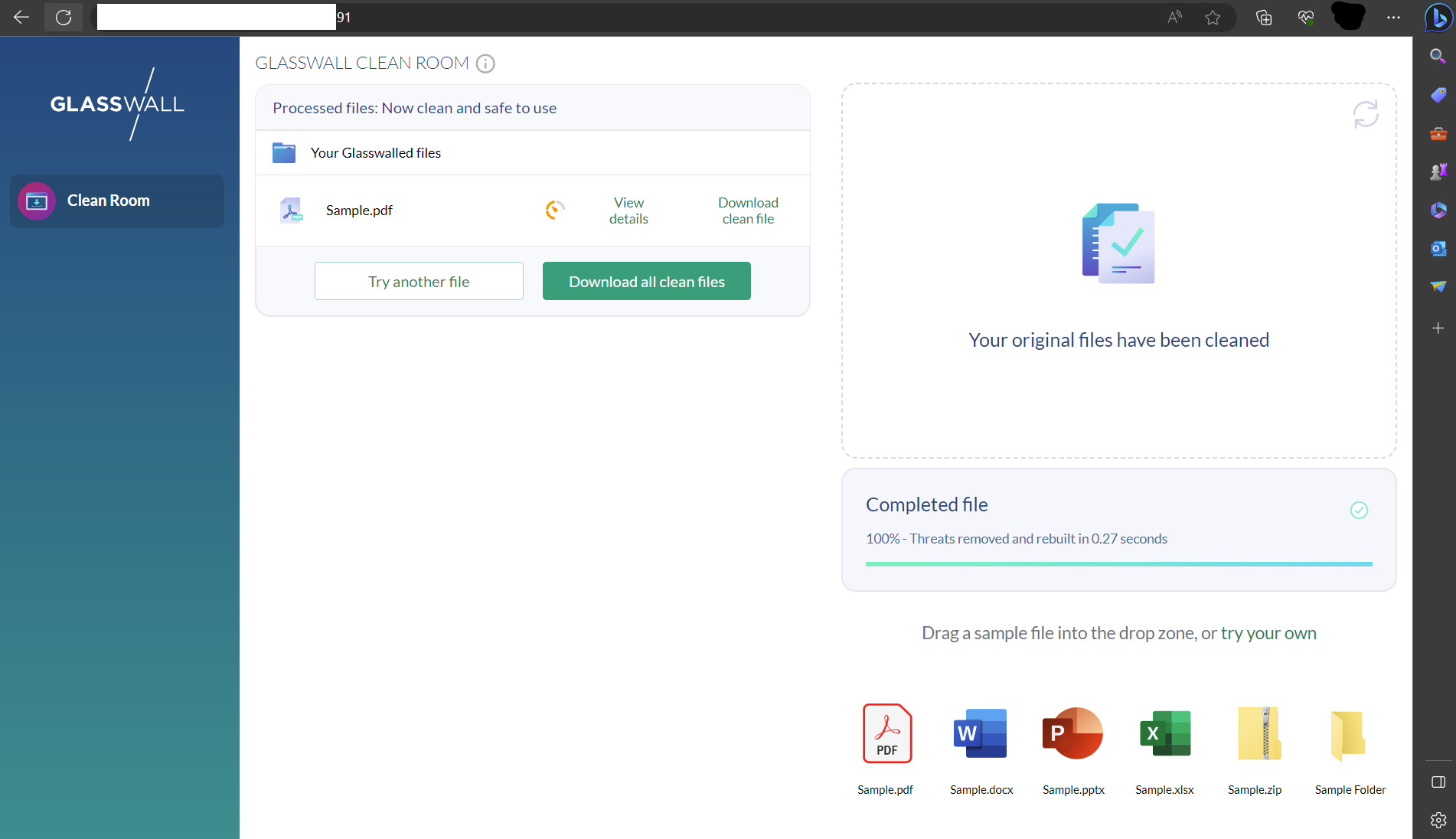
15. Access Glasswall Clean Room
- Per your network configuration and or domain configuration, you will now be able to access Cleanroom through the domain name and or ip address assigned to your VM.
- You can run the following command to confirm network status.
sudo netstat -tlnp
16. Access Glasswall Swagger API Endpoints
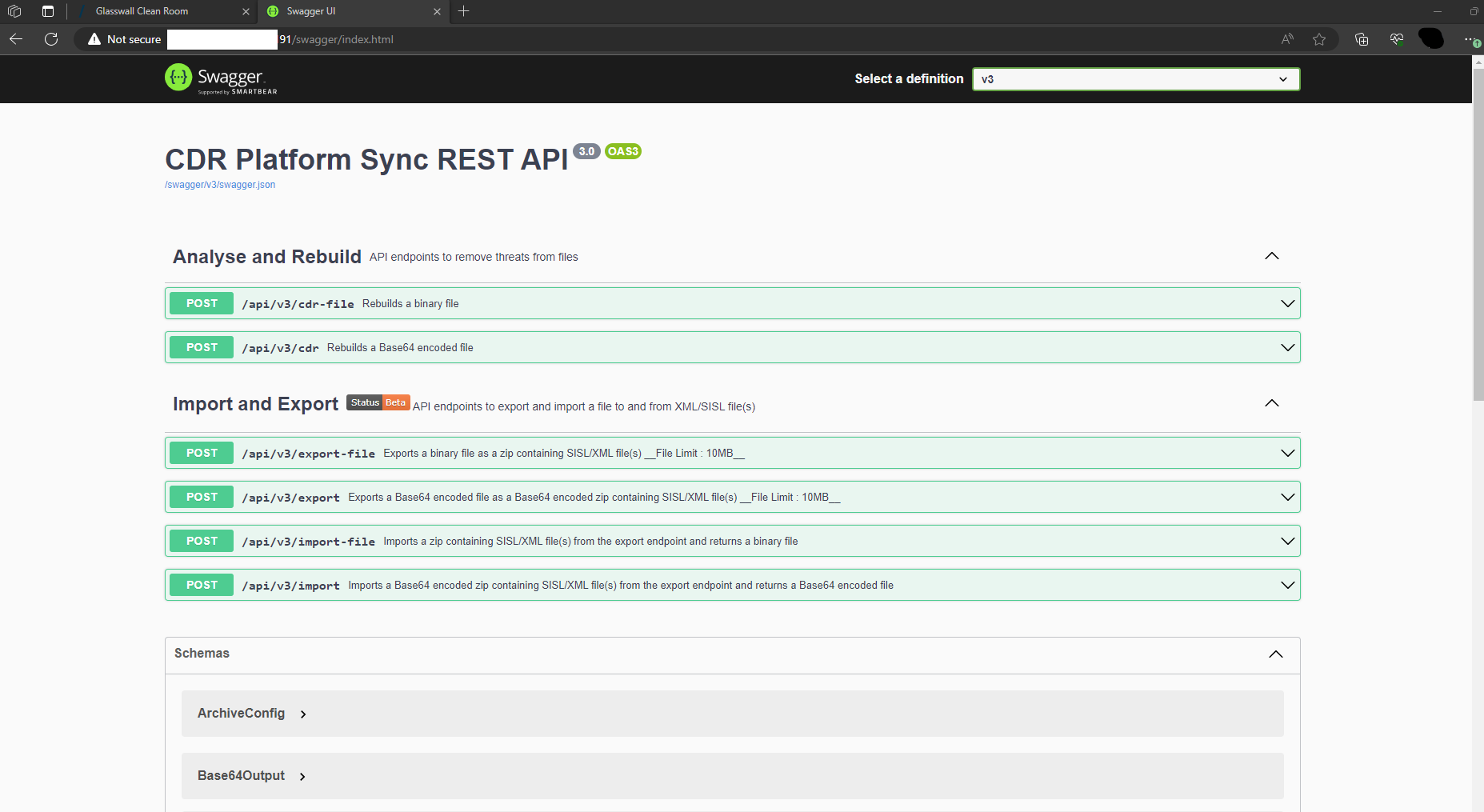
- Navigate to the following to access the Glasswall Halo API Endpoints: https://<Your Domain or IP>/swagger/index.html
17. Validating Deployment
You are able to validate the deployment by using our API Health Check feature.