Quick-Start
Overview
This quick start guide shows you how to quickly begin testing our CDR Platform and testing out one of our many capabilities. In today's data-driven world, security and privacy are of paramount importance. The CDR Platform REST API provides a crucial layer of defence by ensuring that files are thoroughly sanitised, removing any potentially harmful elements while preserving the integrity of the original content. Whether you're a developer aiming to enhance your application's security or an organization dedicated to safeguarding sensitive information, this guide will take you through the essential steps of quickly utilising the CDR Platform.
This guide focues on the quickest way to test out the CDR Platform utilising our POC deployment at https://api.glasswall.com
Authentication
To access https://api.glasswall.com, you'll need a designated username and password. Acquiring these credentials is a straightforward process – simply reach out to our dedicated sales team at sales@glasswall.com. Upon submitting your request, you can anticipate a swift response containing your unique username and password. This confidential information will be securely dispatched to you via email, accompanied by a safe link granting access to our software distribution platform, Kiteworks.
Once armed with your designated username and password, you're all set to unlock the potential of the CDR Platform. Seamlessly navigate to https://api.glasswall.com and use these credentials to establish a secure connection.
Once you navigate to the https://api.glasswall.com you will be presented with the swagger UI of the CDR Platform
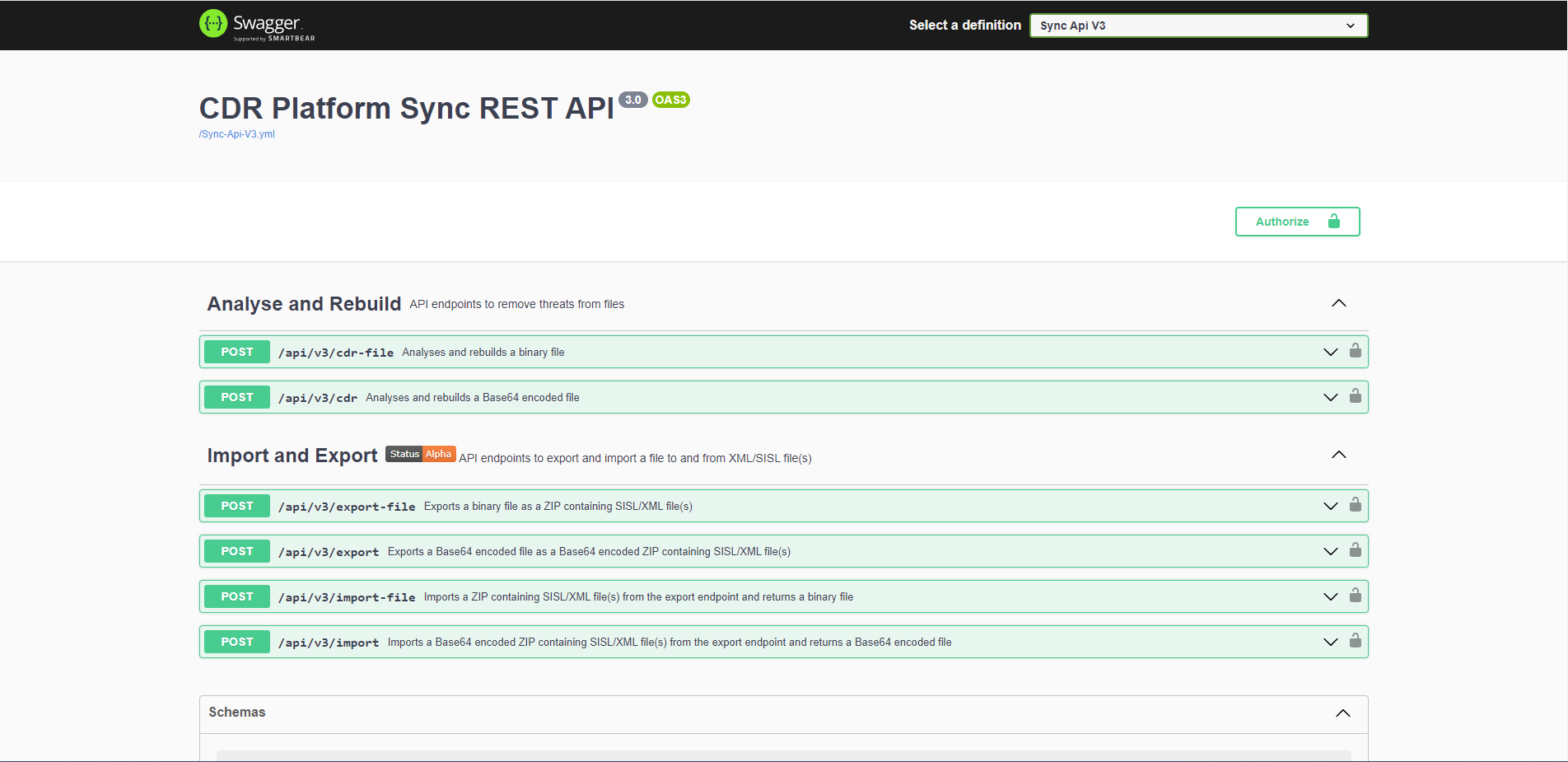
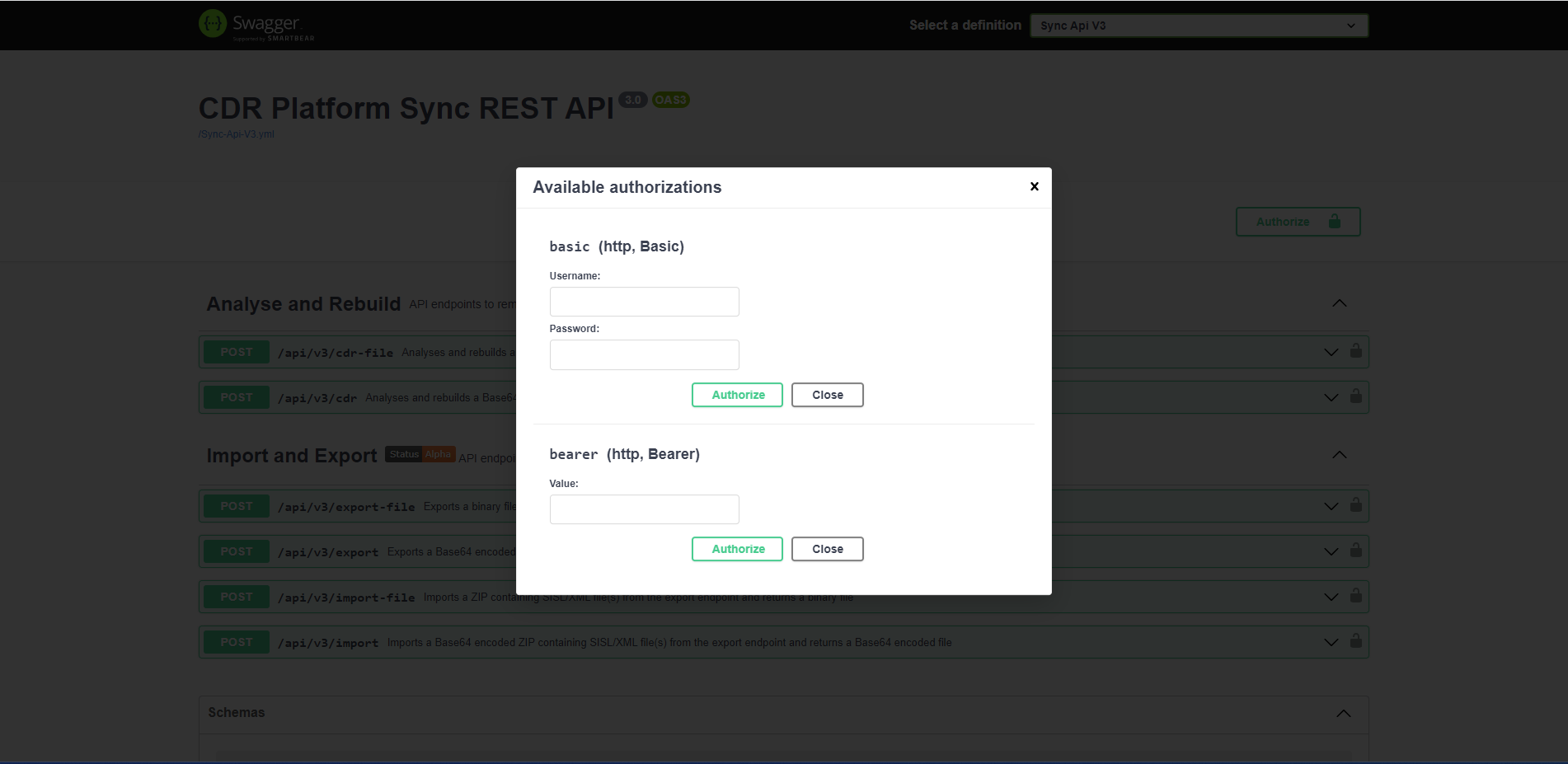
With your credentials in hand, the next step is to navigate to the top right corner and locate the "Authorize" button. Upon clicking this button, a modal popup will emerge, housing input boxes for your freshly acquired credentials. In the designated "username" box, insert the username you've been provided. Correspondingly, in the "password" box, input the confidential password provided to you by our sales team. Clicking on the "Authorize" button will allow you access to the CDR Platform.
Processing a file
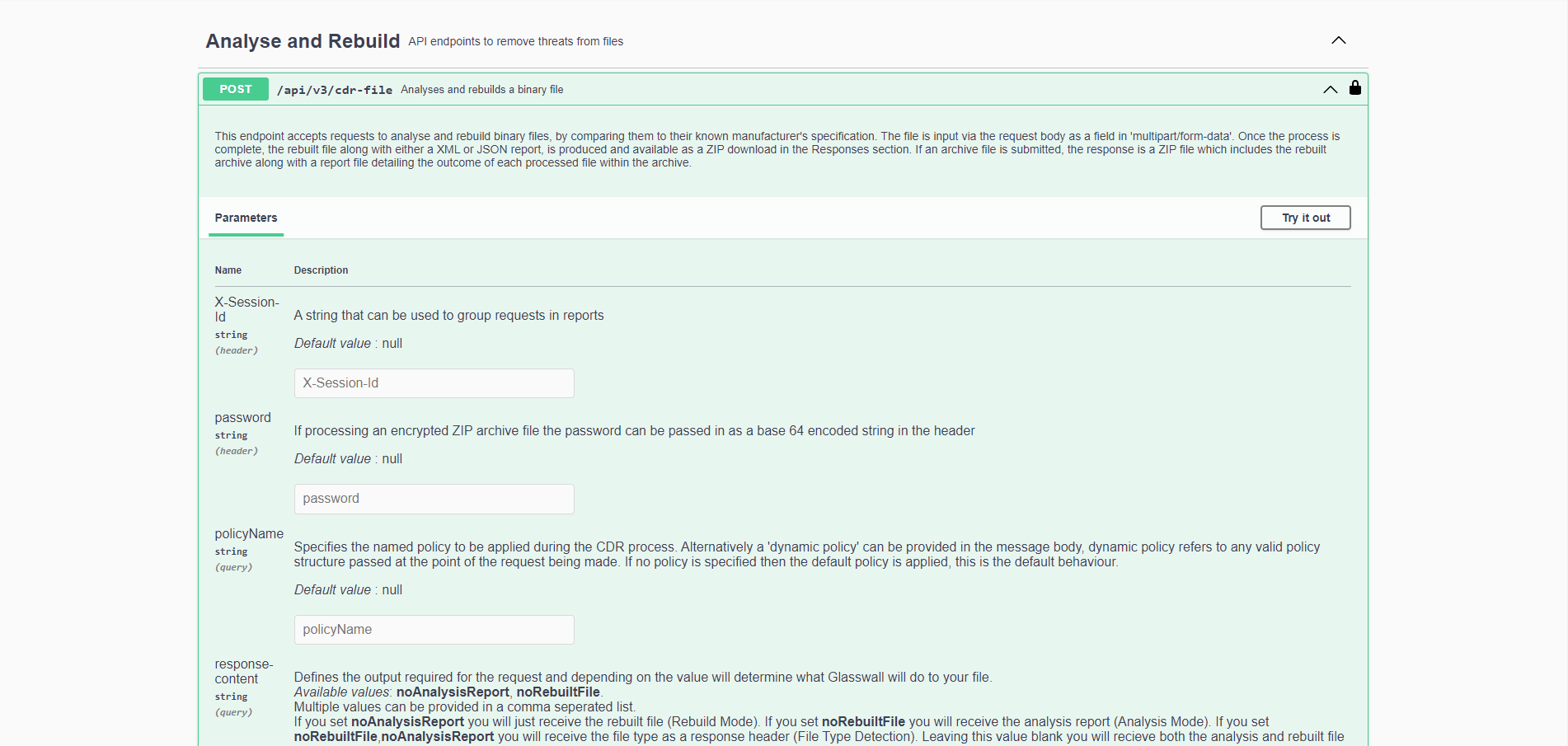
The easiest way to process a file from this page is to use the top API call api/v3/cdr-file, clicking on this row of the page will expand a new section of the screen which will provide you several points of information. There is a "Try it out" button in the top right of this new section. You will need to click this to ensure the following fields become active and you can begin to process files.
Parameters
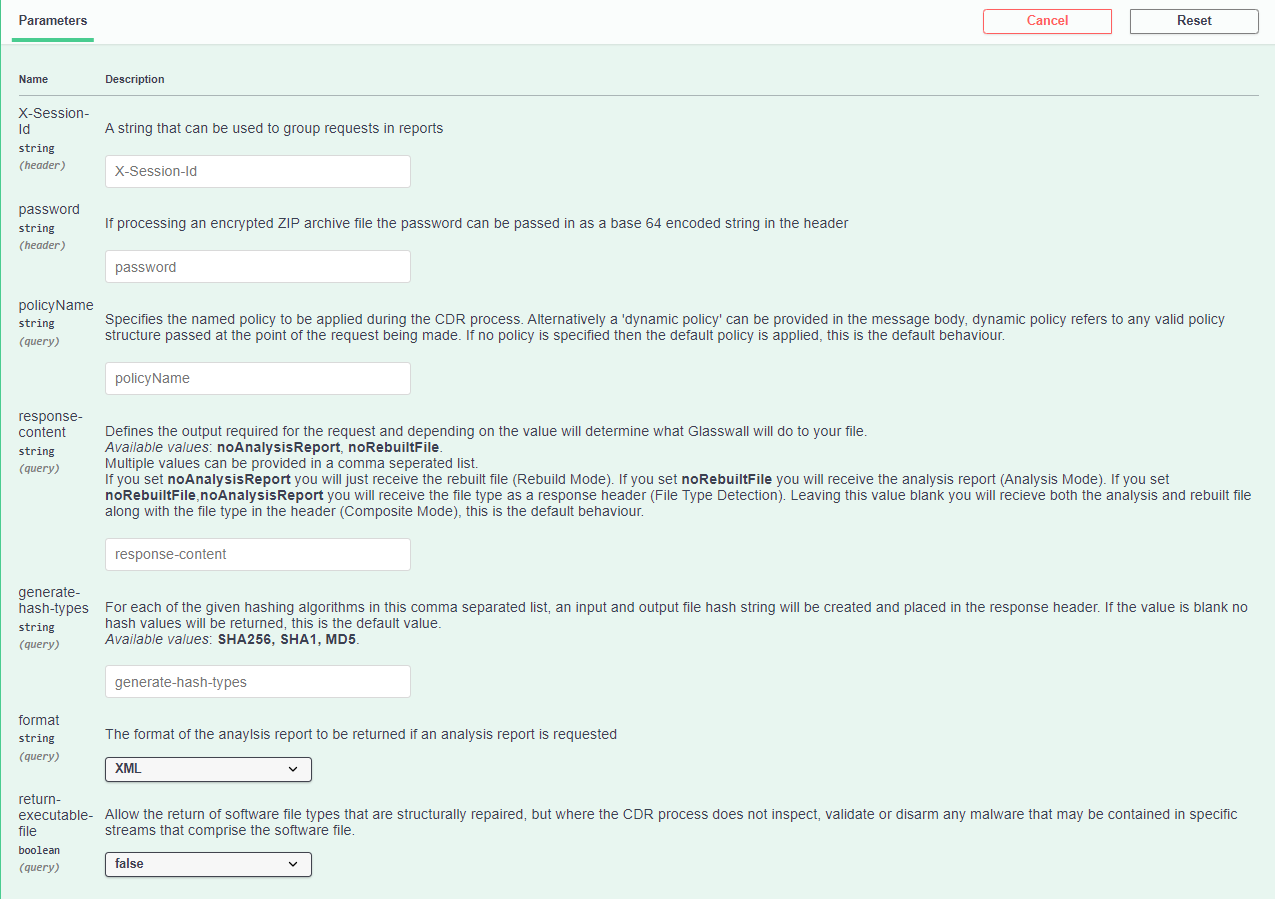
For each API call there are several parameters which you can alter depending on what you want to achieve. Most of these paramters are documented on the page itself but you can check out our capabilities documentation to help you better understand what needs to be done to achieve your desired outcome.
Request Body
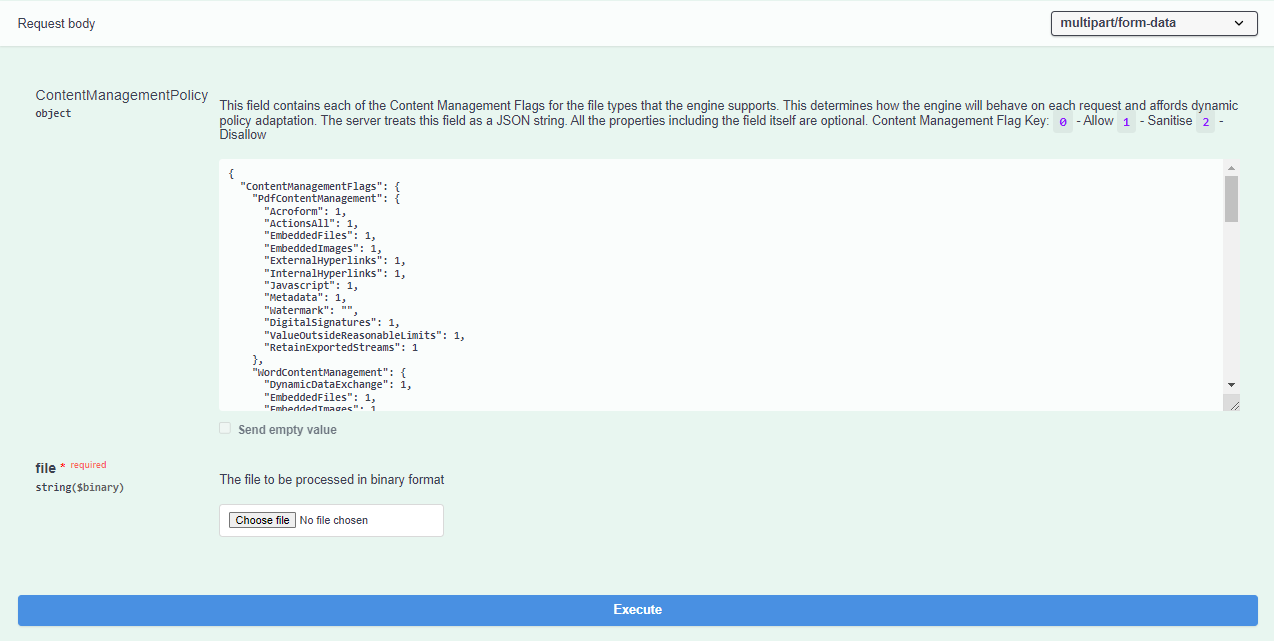
Scrolling down the page reveals a dedicated section for the request body. This part of the request is like a set of instructions for how you want the file to be managed. You're able to adjust these inputs as needed to match your preferences. Right below that, there's an area where you can choose the specific file you want to work with. Simply click the "Choose file" button, and a window will pop up where you can browse and select the file you want to process.
Once you've got all your choices in place and you're satisfied with how things are set up, you're ready to take action. Just hit the "Execute" button. This will send your request to the CDR Platform, and it will start processing your chosen file based on the inputs you provided.
Response
If your request has been successful you will see the following section appear on the page
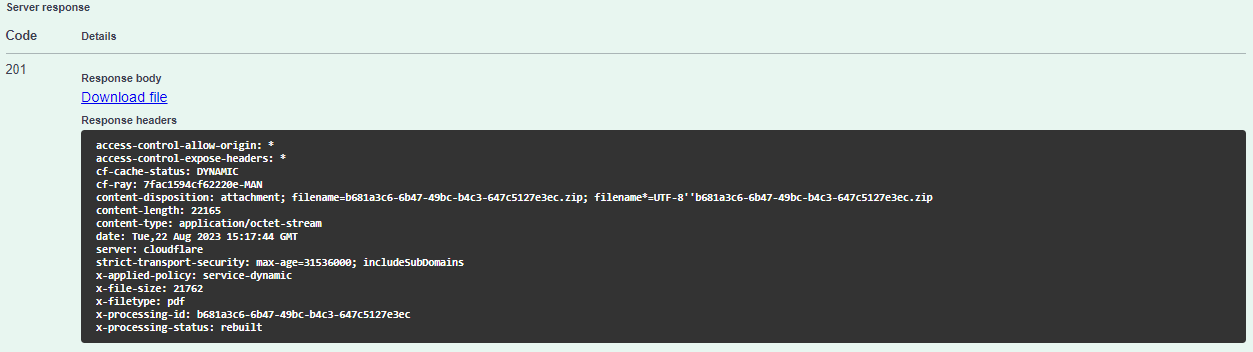
The 201 status code indicates your request has been successful, from this section you can review all the response headers. Most importantly you will see a "Download file" link, clicking this link will download the binary output which will differ based on your request.
If you happen to see a 500 status code that could indicate there is a problem with your file or the CDR Platform and you may want to try another file.
If you see a 400 status code this means there is an issue with your request and you may want to double-check your inputs and ensure they are correct.
If you see a 401 status code this means there is an issue with your authorization credentials and you may want to double-check them.
Conclusion
Now you have successfully CDR'd your first file, you can continue to use the Swagger UI to process some more files or you can begine to integrate your application POC's programmatically using this endpoint and the basic auth credentials. For more on Authorization please see here.
If you want to get the CDR Platform running locally you can following our Minikube guide.
You can also deploy the CDR Platform on your own infrastriucuytr using one of the following approaches:
For any further information please contact our sales team at sales@glasswall.com