Halo Keycloak SSO Integration and Helm Deployment
Introduction
This guide provides step-by-step instructions to integrate Keycloak Single Sign-On (SSO) with the Glasswall Halo platform in an offline (air-gapped) on-premises environment. We assume you have already deployed the Single Node Halo platform (e.g., VMs on Proxmox or ESXi) and now want to enable OIDC-based SSO using Keycloak.
The guide will walk you through:
- Setting up a Keycloak server with HTTPS in an offline environment (using a preloaded container image or a manual VM install).
- Importing the provided
glasswall-realm.json(Glasswall realm configuration) into Keycloak and customizing it for your environment. - Configuring TLS certificates and DNS/host resolution for the Keycloak server and Halo.
- Deploying the Halo Portal and related services (
cdrplatform-portal,cdrplatform-portalaccess,cdrplatform-api-access).
Overview and Prerequisites
Environment Requirements:
-
Suitable for air-gapped or strictly on-premises environments.
-
Single Node Halo cluster must be pre-deployed.
-
DNS resolution managed internally, either via local DNS server or manually through
/etc/hostsentries. -
Keycloak installed locally on Host server and or Virtual Machine:
- Keycloak Documentation & Installation here
Resources:
- Pre-configured realm JSON (
glasswall-realm.json), provided by Glasswall Support. - Halo Helm Charts available locally to your Single Node Halo cluster.
DNS/Hosts Setup: At this point, ensure that the hostname you chose for Keycloak is resolvable by your clients and the Halo platform components:
- If you have an internal DNS, create an A record for
keycloak.dev.localpointing to Keycloak's IP. - If no DNS, you can add an entry in the local
/etc/hosts(orC:\Windows\System32\drivers\etc\hostson Windows) for the hostname.
For example:
10.0.0.82 keycloak.dev.local
Do this on any machine that will access Keycloak.
1. Configuring Keycloak for Glasswall Halo SSO
Glasswall provides a Keycloak realm configuration (as a JSON file) that defines the realm, clients, roles, and scopes needed for Halo's SSO. You can import this configuration to avoid manual setup. In an offline setup, do this via the Keycloak Admin UI.
1.1 Importing the Glasswall Realm Configuration
- Obtain the Realm Export: You should have a file named
glasswall-realm.json. This file contains the realm settings for Halo's SSO.
Required
Glasswall Realm Summary
The Glasswall Realm includes the following preconfigured items:
- Realm ID: glasswall
Clients:
- halo-portal-client
- halo-api-access
- halo-portal-access
Key Roles:
- Realm-level: Admin, User
- Client-level: Halo client Admin and User roles.
- Client Scopes (pre-configured with mappers):
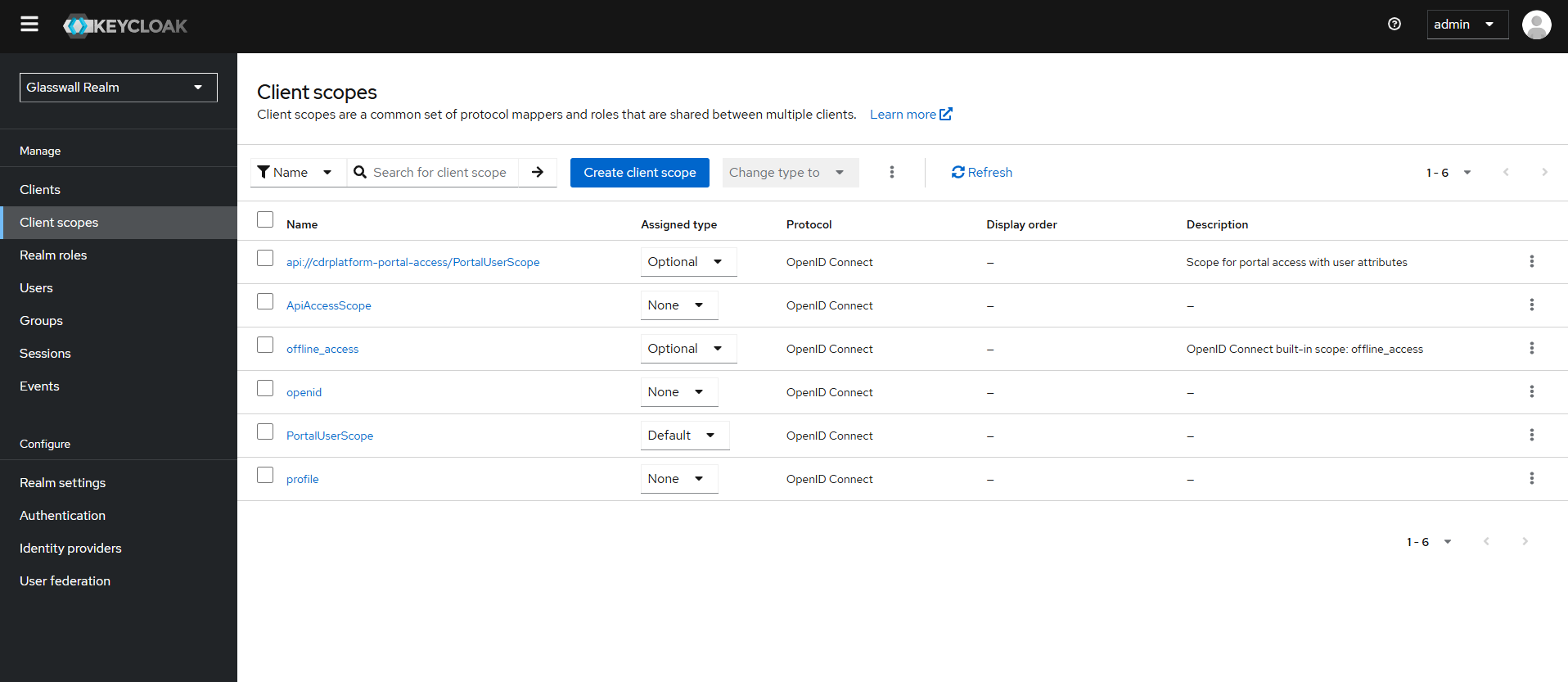
- PortalUserScope: Necessary claims (roles, email) to tokens.
Token Lifespan:
- SSO Session Idle Timeout: 30 mins
- Authentication: Standard username/password.
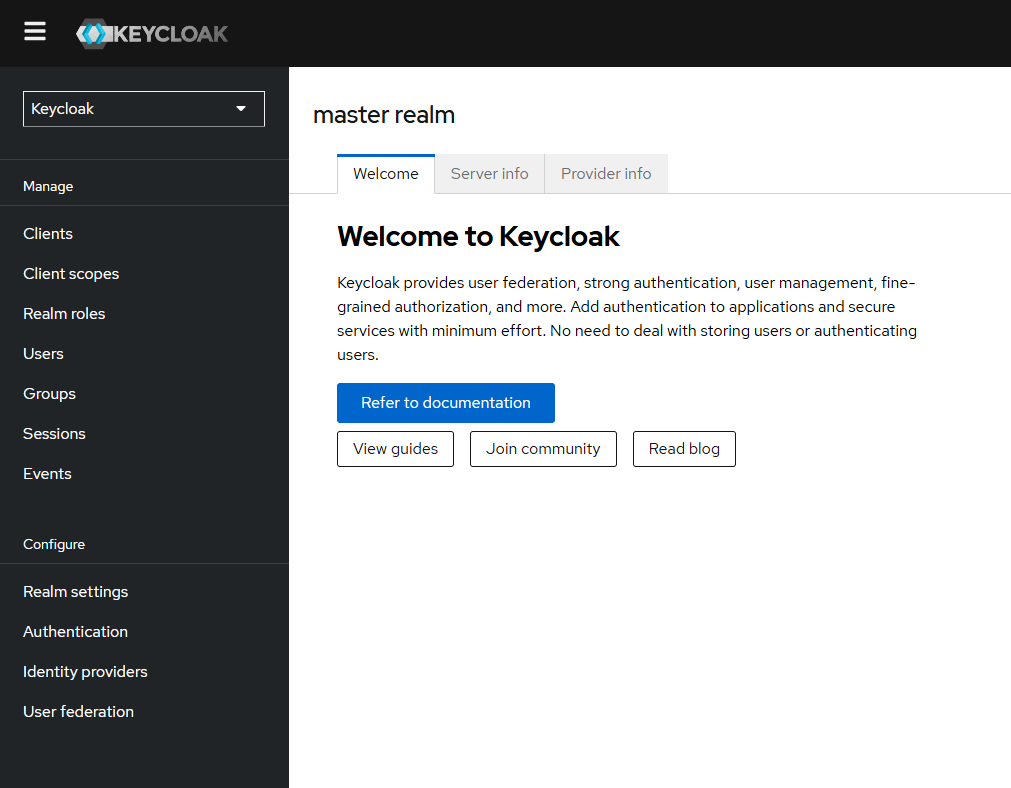
- Log into Keycloak Admin: Using a web browser, navigate to the Keycloak Admin Console at
https://<KEYCLOAK_HOST>:8443/. Log in with the master admin account.
-
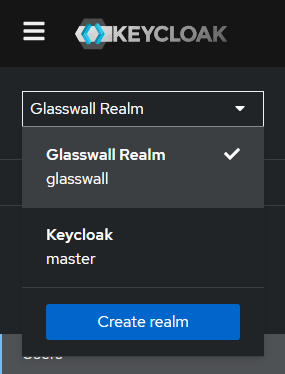
Import the Realm: In the admin console:
- On the left side, click the dropdown in the top-left that currently shows "Master" and choose "Create Realm".
-
In the Create Realm screen, select the Import option. Upload the
glasswall-realm.jsonfile.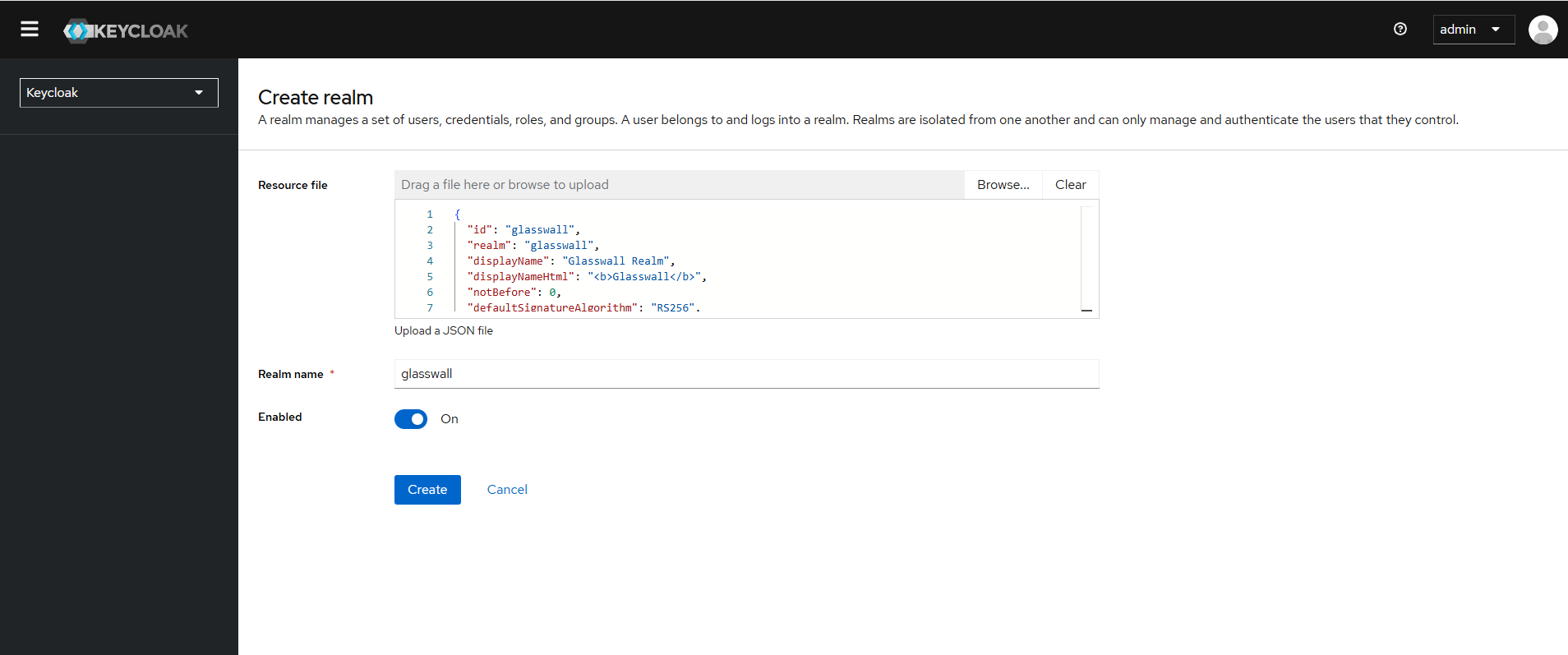
-
Keycloak will parse the file and populate the Realm Name (e.g.,
glasswall) and other settings. Confirm the import. After a moment, you should see a new realm (e.g.,glasswall) in the realm selector.
-
Verify Realm Settings: After import, review the key settings in the Glasswall realm:
-
Realm name is
glasswall(you can keep this default, as the Halo helm charts expect that by default). -
Ensure the realm is enabled (it should be by default).
-
SSL Required setting: By default, this might be set to
external. -
Click on Clients in the left menu and verify that the following clients are present:
-
halo-portal-client -
halo-portal-access -
halo-api-access -
(There may be others like
account,account-console, etc., which are default Keycloak clients, but the above three are specific to Halo.)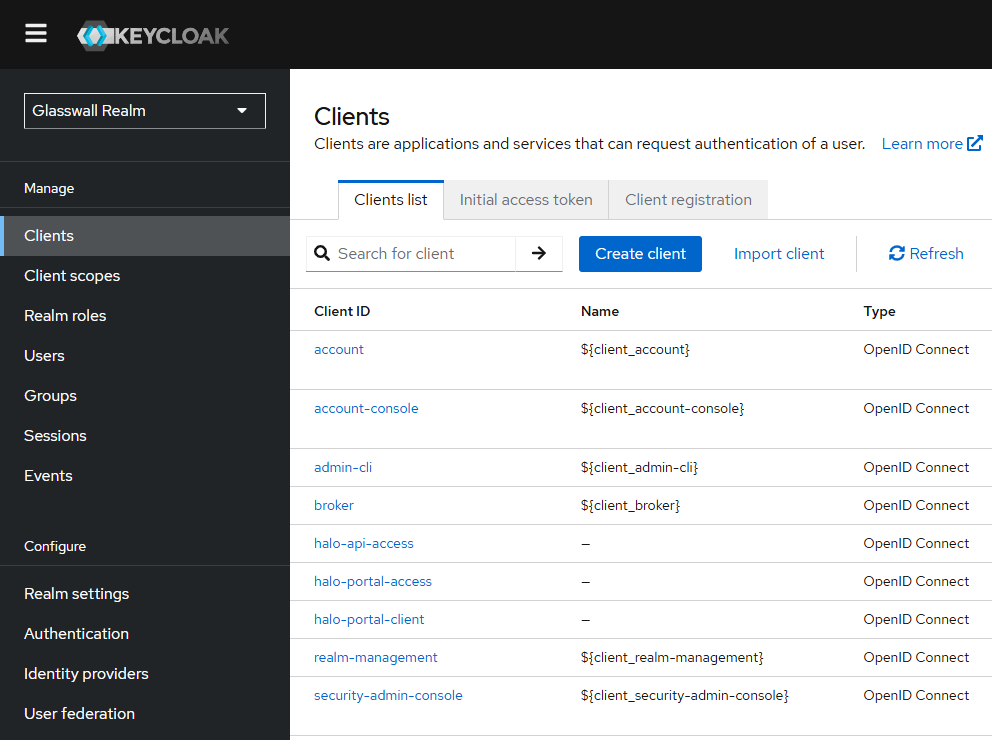
-
-
1.2 Customizing Client Settings (Hostnames and Redirect URIs)
For each of the Halo-related clients, update the configuration to match your environment:
-
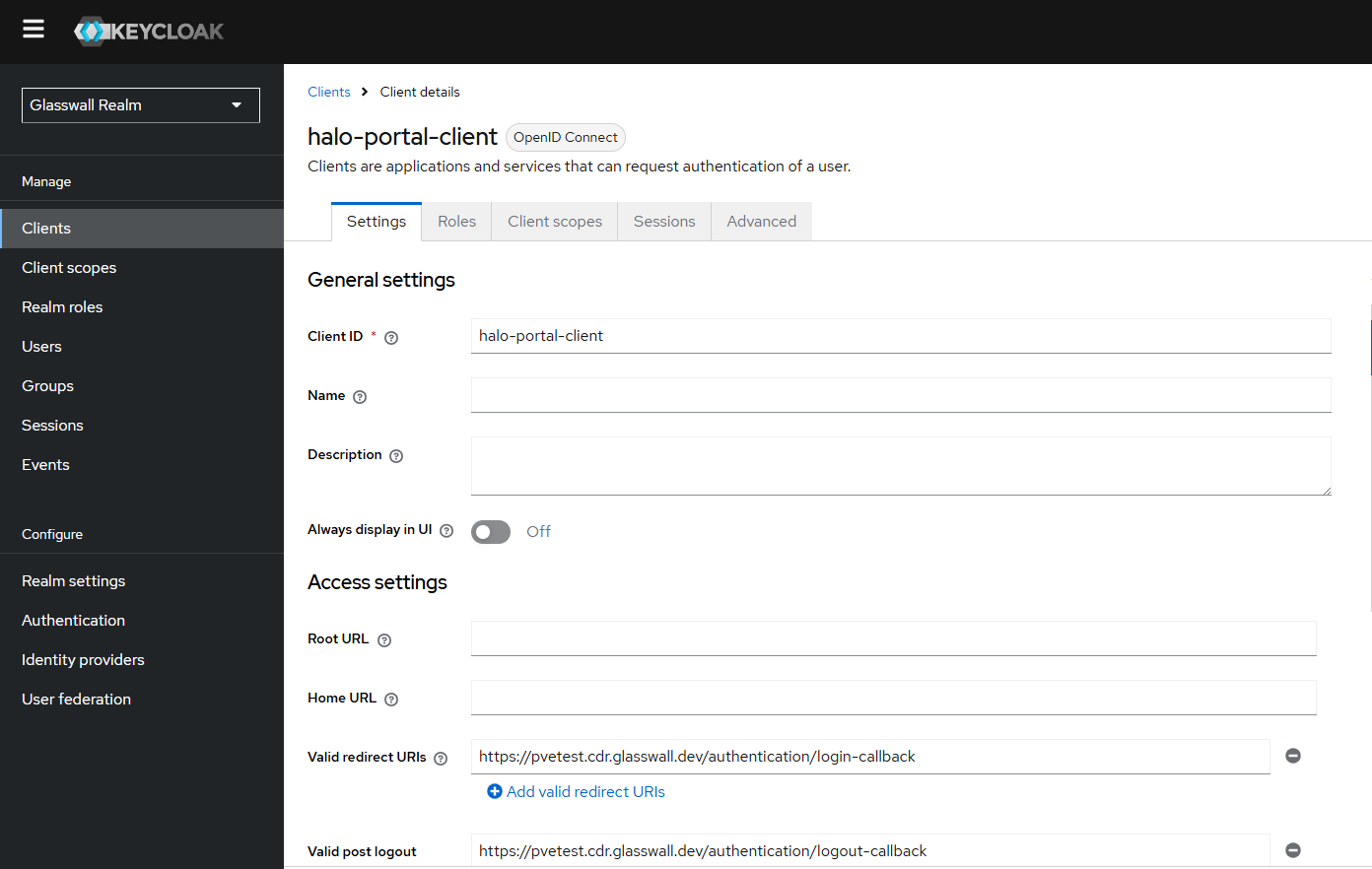
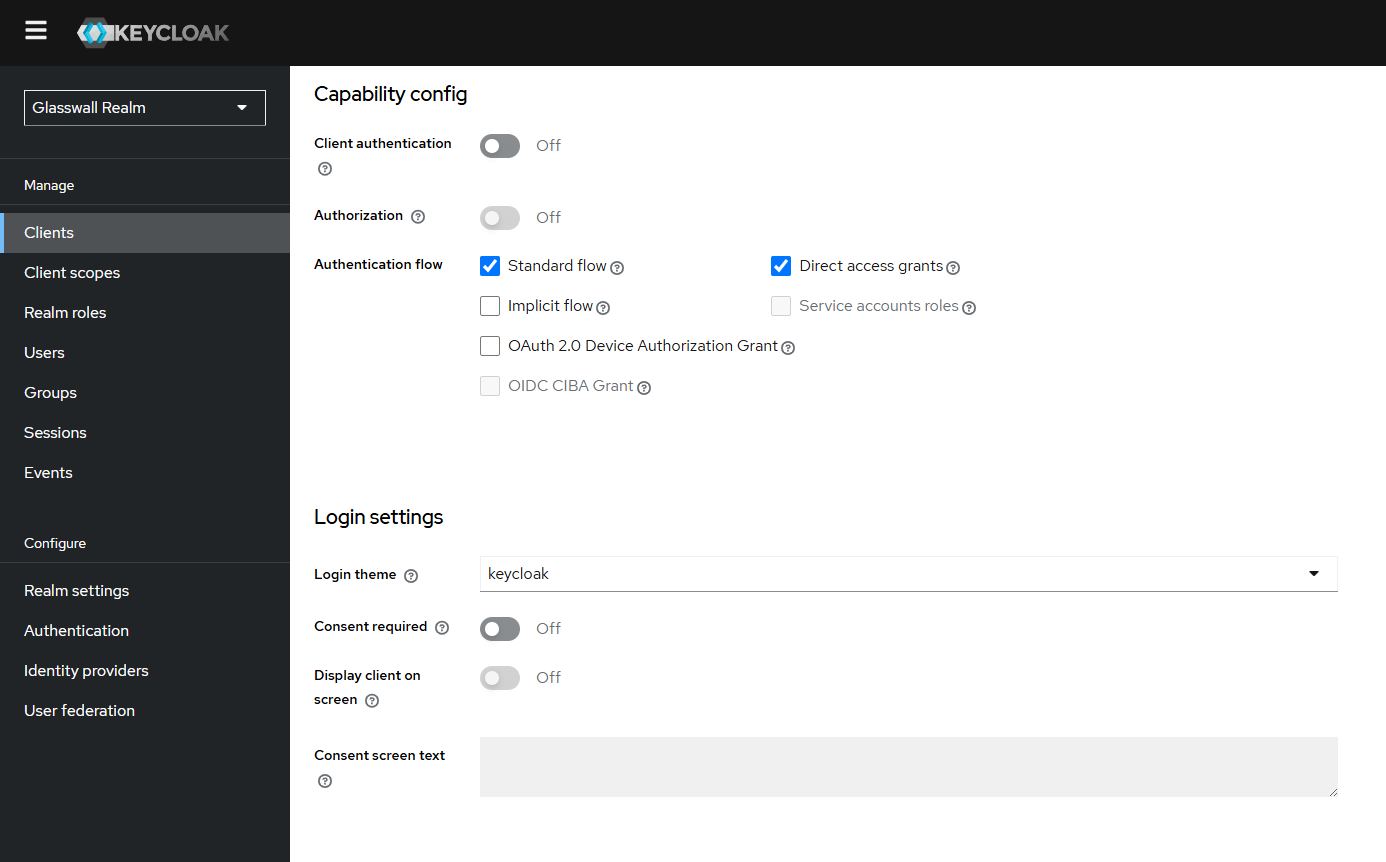
halo-portal-client: This represents the Halo Portal front-end (the user-facing web UI).
-
In Keycloak, click this client to view settings.
-
Valid Redirect URIs: Change the placeholder domain to your actual Portal domain. In the realm JSON, the redirect URI was set to a sample domain (e.g.,
https://pvetest.cdr.glasswall.dev/authentication/login-callback). Edit this to match how users will access your Halo portal. For example, if your Halo portal will be accessed athttps://halo.dev.local/, and the application's login callback path is/authentication/login-callback, then set:- Redirect URIs:
https://halo.dev.local/authentication/*. - Web Origins: Update this to your portal origin URL (e.g.,
https://halo.dev.local). - Root URL: (Optional) You can set it to
https://halo.dev.local. - Logout Redirect URIs/Post Logout Redirect: Ensure it is updated too. For example:
https://halo.dev.local/authentication/logout-callback.
- Redirect URIs:
-
-
halo-portal-access: This represents the Portal's backend.
- Credentials (Client Secret): Keycloak will have generated a secret for this client.
- Redirect URIs: (e.g.,
https://pvetest.cdr.glasswall.dev/*), update it to your portal domain. - Web Origins: Set it to your portal domain.
-
halo-api-access: This client corresponds to the Halo API.
- Redirect URIs/Web Origins: Leave as is.
After these changes, Save each client's settings.
1.3 Creating Users and Assigning Roles
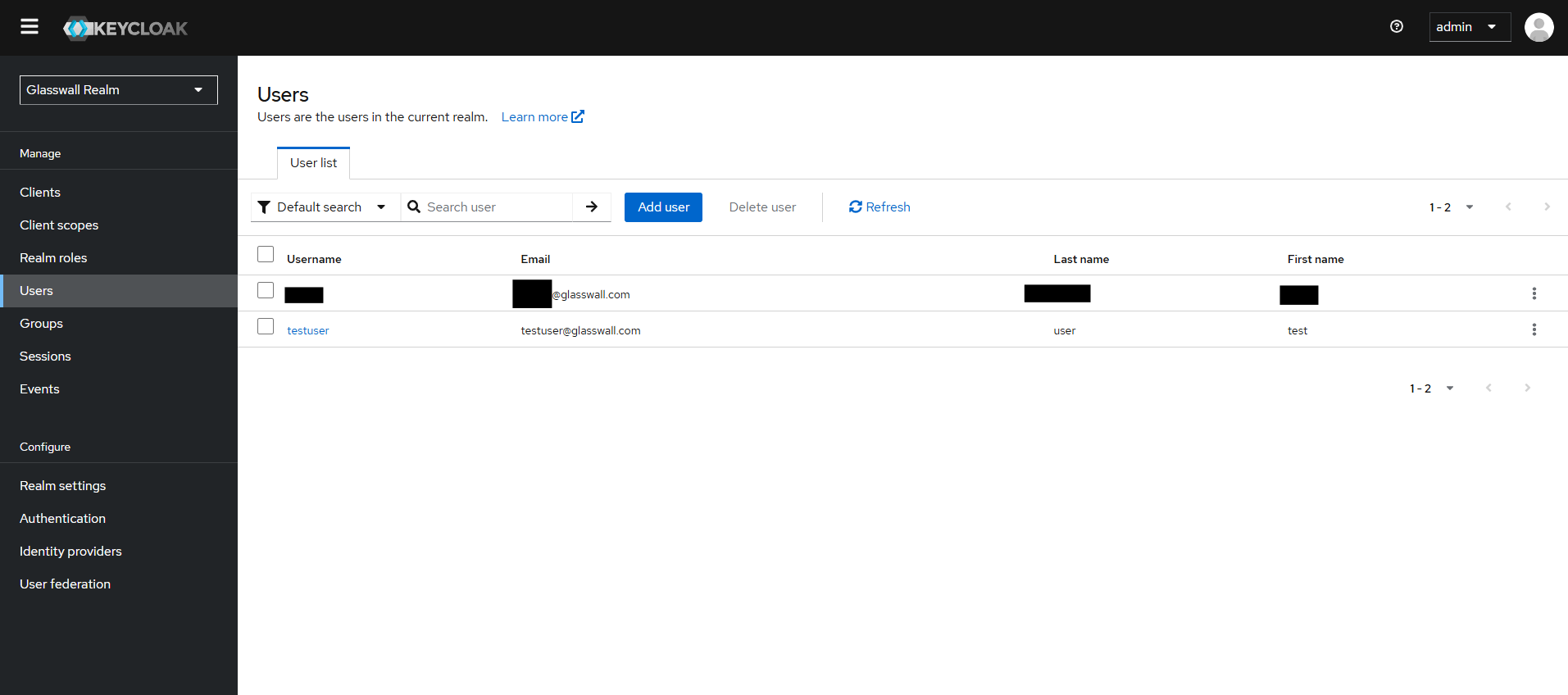
The imported realm defines basic roles such as Admin and User for Halo, but it does not include any user accounts. You will need to create at least one user (e.g., an admin user) in Keycloak for testing and initial access:
- In the Keycloak admin console, ensure you have the
glasswallrealm selected. - Click Users in the menu, then Add User.
- Fill in a username (e.g.,
adminor your name), email, and other details as needed. Set Email Verified to on (optional). Click Save. - After saving, go to the Credentials tab for the new user. Set a password and toggle Temporary to off (so it doesn't force a change on first login, unless desired). Save the password.
- Assign roles to the user: Go to the Role Mappings tab. In the realm roles section, you should see
AdminandUser. If this user should have administrative and or user privileges in the Halo, assign all halo associatedAdminand orUserroles - as shown in the illustrations below .
Role Mappings permissions are available for the following:
- halo-portal-client [admin, user]
- halo-api-access [admin, user]
- halo-portal-access [admin, user]
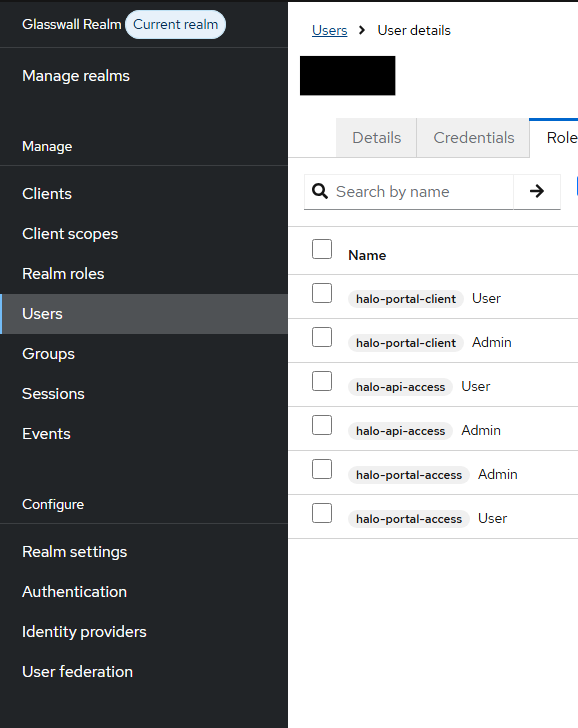
- An assigned
Adminrole will grant access to an admin user profile, whereas aUserrole will grant access to a user profile.
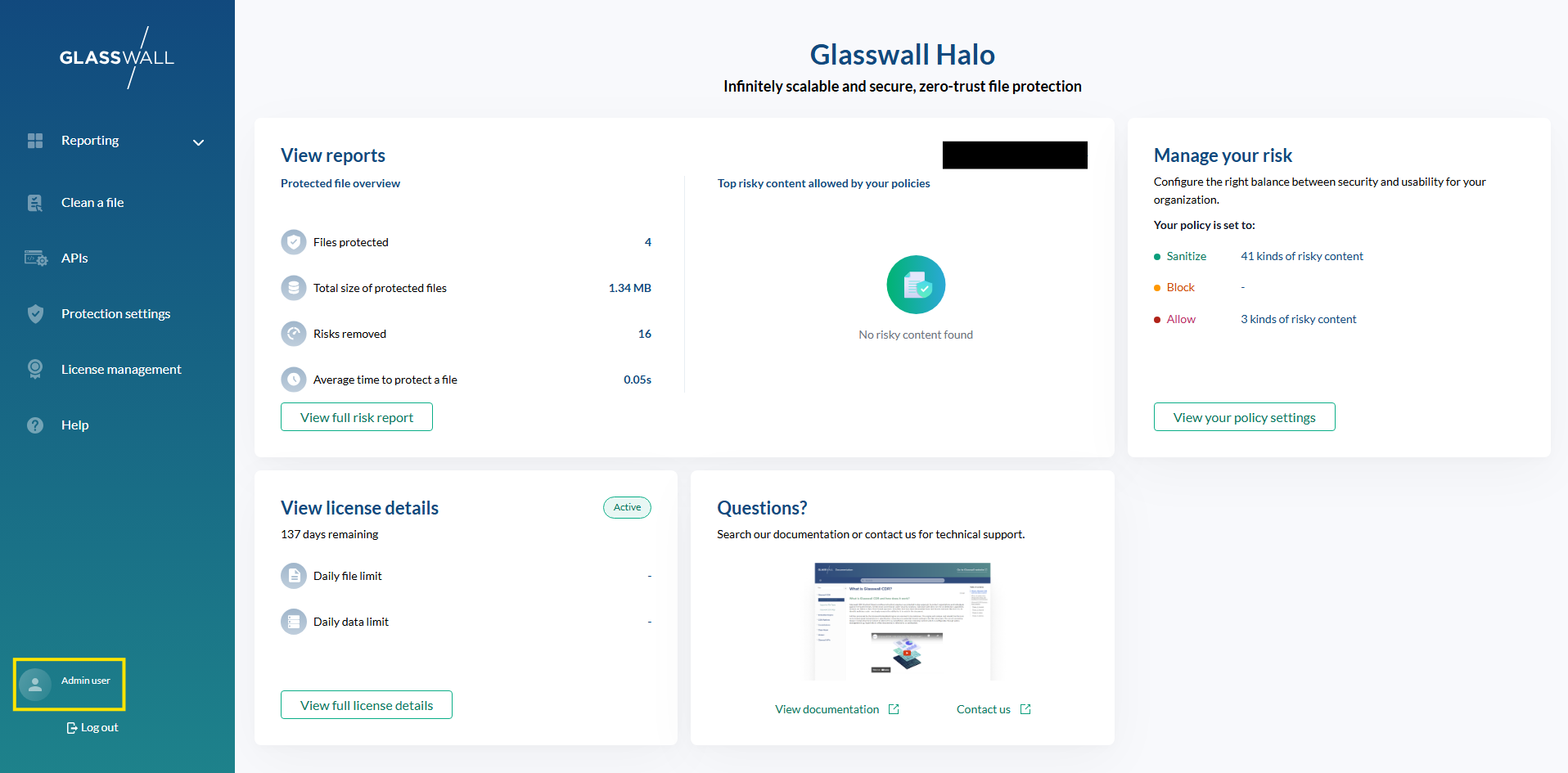
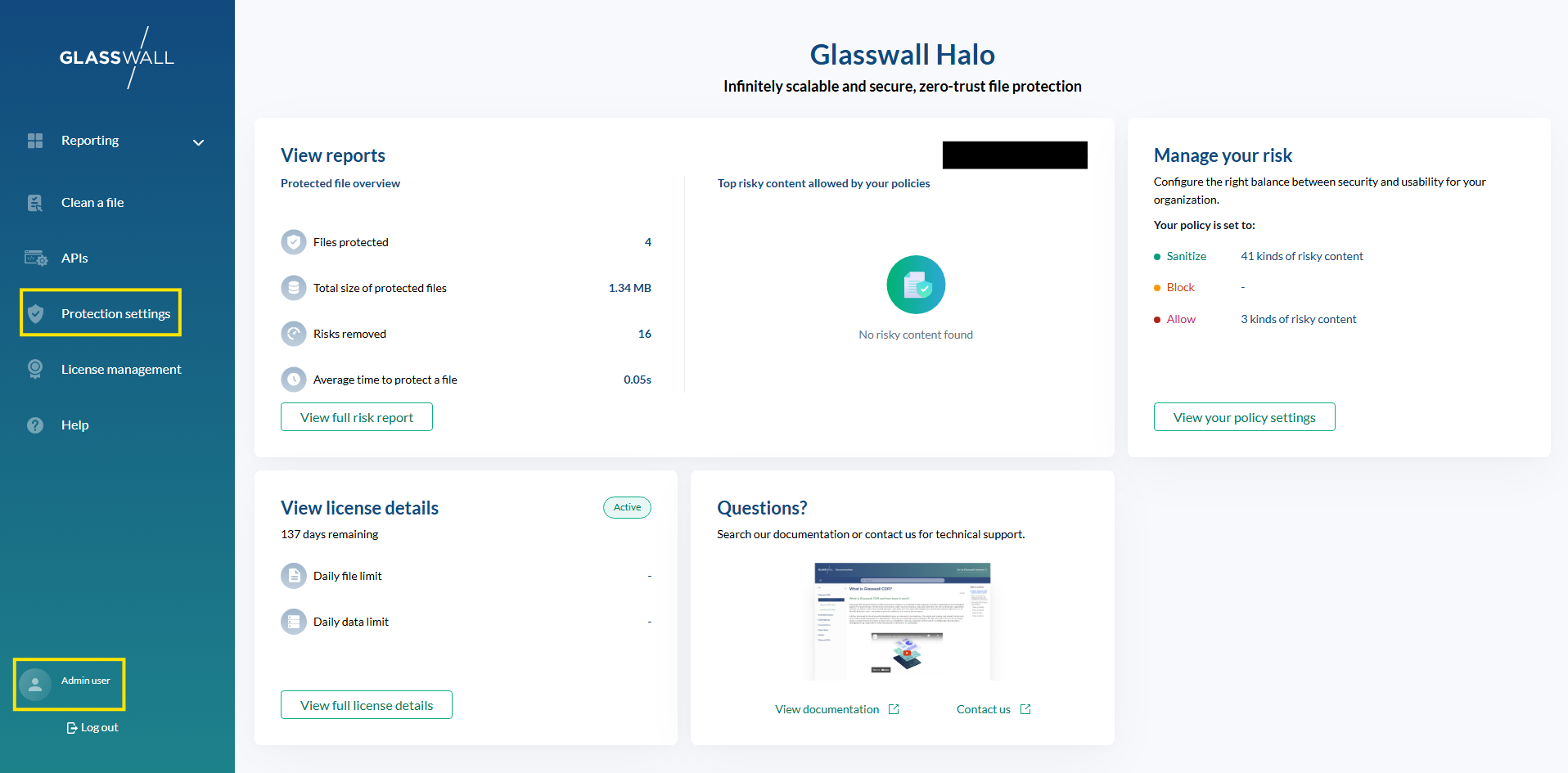
- An assigned
Adminrole will allow the user administrative access to the Protective settings page.
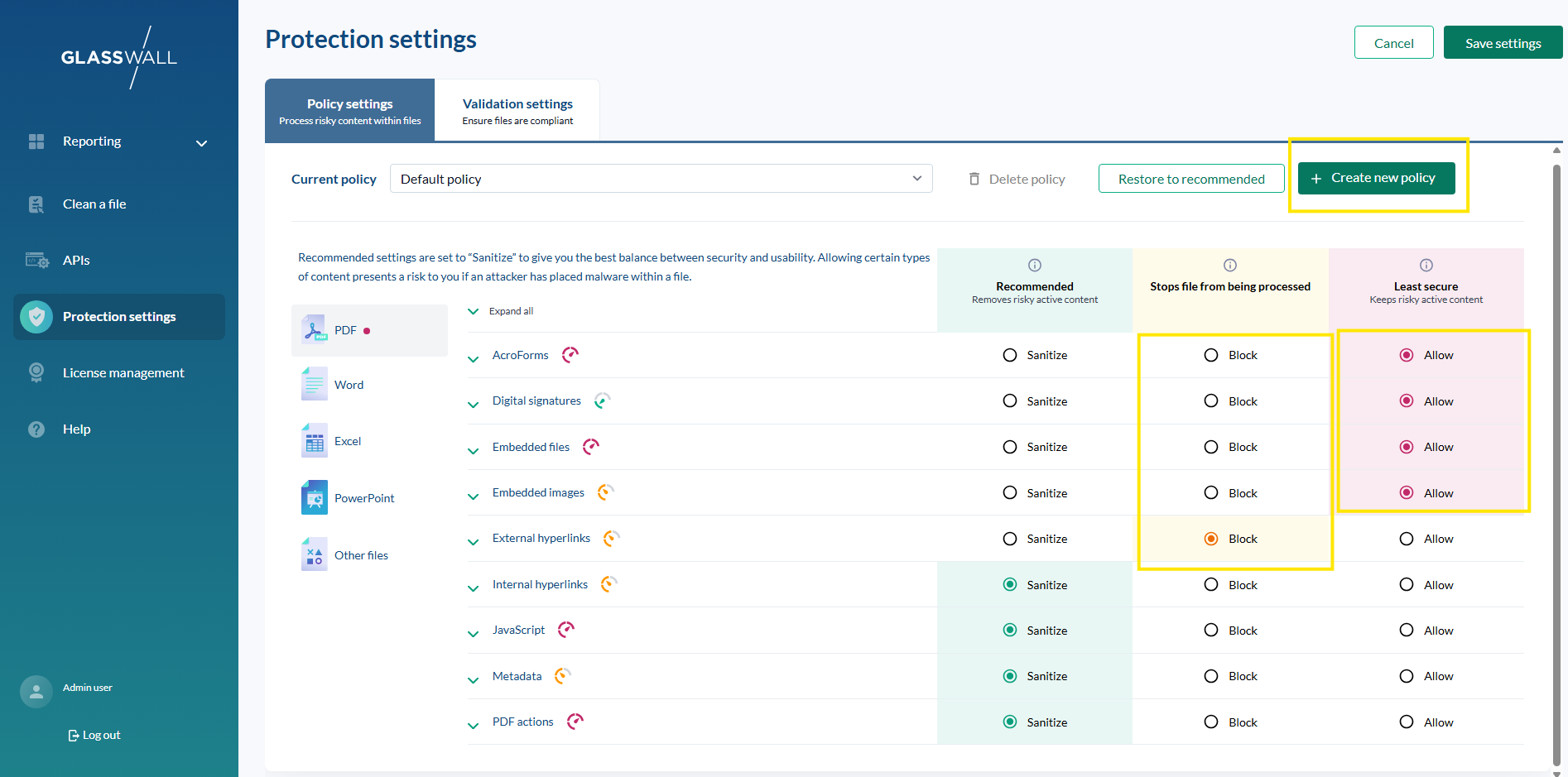
- An assigned
Adminrole will allow the user access to modify Policy and Validation Settings and the ability to Create and Restore Policies.
Repeat the above to create any additional users or test accounts.
At this stage, Keycloak is fully configured for Halo:
- A realm (
glasswall) with needed clients and scopes. - At least one user with credentials and roles.
- A client secrets for the backend services noted down.
- The Keycloak server running.
2. TLS Certificates and DNS Considerations
To ensure seamless SSO, you need proper TLS and name resolution for both Keycloak and Halo's components:
2.1 TLS Trust
All Halo platform services (Portal, Portal-Access, API-Access) will make calls to Keycloak.
2.2 DNS and /etc/hosts
As highlighted above, ensure that:
- Keycloak hostname is resolvable by all components and users.
- Halo portal domain is resolvable by users' machines.
3. Deploying Halo Services with Keycloak SSO (Helm Configurations)
With Keycloak ready, configure the Halo platform's services (Portal, Portal-Access, API-Access) to use Keycloak for authentication. Glasswall Halo is deployed via Helm charts. In an offline scenario the platform services Helm Charts are located on the Halo server.
Below are Helm commands for each component:
Replace placeholders in Helm commands with your specific values.
Deploy Halo Portal
helm upgrade --install cdrplatform-portal ./cdrplatform-portal \
  --set image.tag="<IMAGE_TAG>" \
  --set ingress.tls.enabled=true \
  --set ingress.tls.domain="<PORTAL_DOMAIN>" \
  --set ingress.tls.secretName="<TLS_SECRET>" \
  --set configuration.BackendUrl="https://<PORTAL_DOMAIN>" \
  --set configuration.HaloVersion="2.9.0" \
  --set configuration.EnabledPages="SystemSettings,PolicySettings,ValidationSettings" \
  --set configuration.OIDC.ProviderOptions.Authority="https://<KEYCLOAK_DOMAIN>:8443/realms/glasswall" \
  --set configuration.OIDC.ProviderOptions.ClientId="halo-portal-client" \
  --set configuration.OIDC.ProviderOptions.RedirectUri="https://<PORTAL_DOMAIN>/authentication/login-callback" \
  --set configuration.OIDC.ProviderOptions.PostLogoutRedirectUri="https://<PORTAL_DOMAIN>/authentication/logout-callback" \
  --set configuration.OIDC.ProviderOptions.Scope="openid profile api://cdrplatform-portal-access/PortalUserScope" \
  --set configuration.OIDC.ProviderOptions.SilentCheckSsoRedirectUri="https://<PORTAL_DOMAIN>/silent-check-sso.html" \
  --set appenvironment.HTTP_CSP_FRAME_SRC="'self' https://<KEYCLOAK_DOMAIN>:8443 https://<PORTAL_DOMAIN>/silent-check-sso.html" \
  --set appenvironment.HTTP_CSP_CONNECT_SRC="'self' https://<KEYCLOAK_DOMAIN>:8443" \
  --set configuration.Authentication__Schemes__Bearer__RequireHttpsMetadata=true \
  --set configuration.Authentication__Schemes__Bearer__MetadataAddress="https://<KEYCLOAK_DOMAIN>:8443/realms/glasswall/.well-known/openid-configuration" \
  --set configuration.Logging__LogLevel__Keycloak="Debug"
Deploy Halo Portal-Access Service
helm upgrade --install cdrplatform-portal-access ./cdrplatform-portal-access \
  --set image.tag="<IMAGE_TAG>" \
  --set ingress.tls.domain="<PORTAL_DOMAIN>" \
  --set ingress.tls.enabled=true \
  --set ingress.tls.secretName="<TLS_SECRET>" \
  --set configuration.AuthenticationScheme="Bearer" \
  --set configuration.Authentication__Schemes__Bearer__ValidAudiences__0="api://cdrplatform-portal-access" \
  --set configuration.Authentication__Schemes__Bearer__ValidIssuer="https://<KEYCLOAK_DOMAIN>:8443/realms/glasswall" \
  --set configuration.Authentication__Schemes__Bearer__Authority="https://<KEYCLOAK_DOMAIN>:8443/realms/glasswall" \
  --set configuration.Authentication__Schemes__Bearer__RequireHttpsMetadata=true \
  --set configuration.Authentication__Schemes__Bearer__MetadataAddress="https://<KEYCLOAK_DOMAIN>:8443/realms/glasswall/.well-known/openid-configuration" \
  --set configuration.Authentication__Schemes__Bearer__JwksUri="https://<KEYCLOAK_DOMAIN>:8443/realms/glasswall/protocol/openid-connect/certs"
Deploy Halo API-Access Service
helm upgrade --install cdrplatform-api-access ./cdrplatform-api-access \
  --set image.tag="<IMAGE_TAG>" \
  --set ingress.tls.enabled=true \
  --set ingress.tls.secretName="<TLS_SECRET>" \
  --set ingress.tls.domain="<PORTAL_DOMAIN>" \
  --set configuration.AuthenticationScheme="Bearer" \
  --set configuration.Authentication__Schemes__Bearer__ValidAudiences__0="api://cdrplatform-api-access" \
  --set configuration.Authentication__Schemes__Bearer__ValidIssuer="https://<KEYCLOAK_DOMAIN>:8443/realms/glasswall" \
  --set configuration.Authentication__Schemes__Bearer__Authority="https://<KEYCLOAK_DOMAIN>:8443/realms/glasswall" \
  --set configuration.Authentication__Schemes__Bearer__RequireHttpsMetadata=true \
  --set configuration.Authentication__Schemes__Bearer__MetadataAddress="https://<KEYCLOAK_DOMAIN>:8443/realms/glasswall/.well-known/openid-configuration" \
  --set configuration.Authentication__Schemes__Bearer__JwksUri="https://<KEYCLOAK_DOMAIN>:8443/realms/glasswall/protocol/openid-connect/certs"
3.1 Post-Deployment Checklist
After deploying all three components, your Halo platform should now be tied into Keycloak. Run through this quick list:
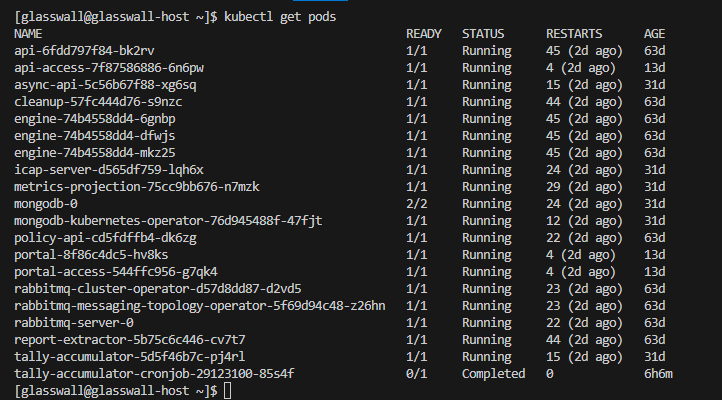
- In Halo, all pods are in
Runningstate. NoCrashLoopBackOffforportal,portal-access, orapi-access. - Logs for
portal-accessandapi-accessshow that they have loaded the Keycloak configuration.
4. Validation and Testing SSO Integration
Testing that SSO works end-to-end. Perform tests to verify each piece of the integration.
4.1 Browser Login Test
-
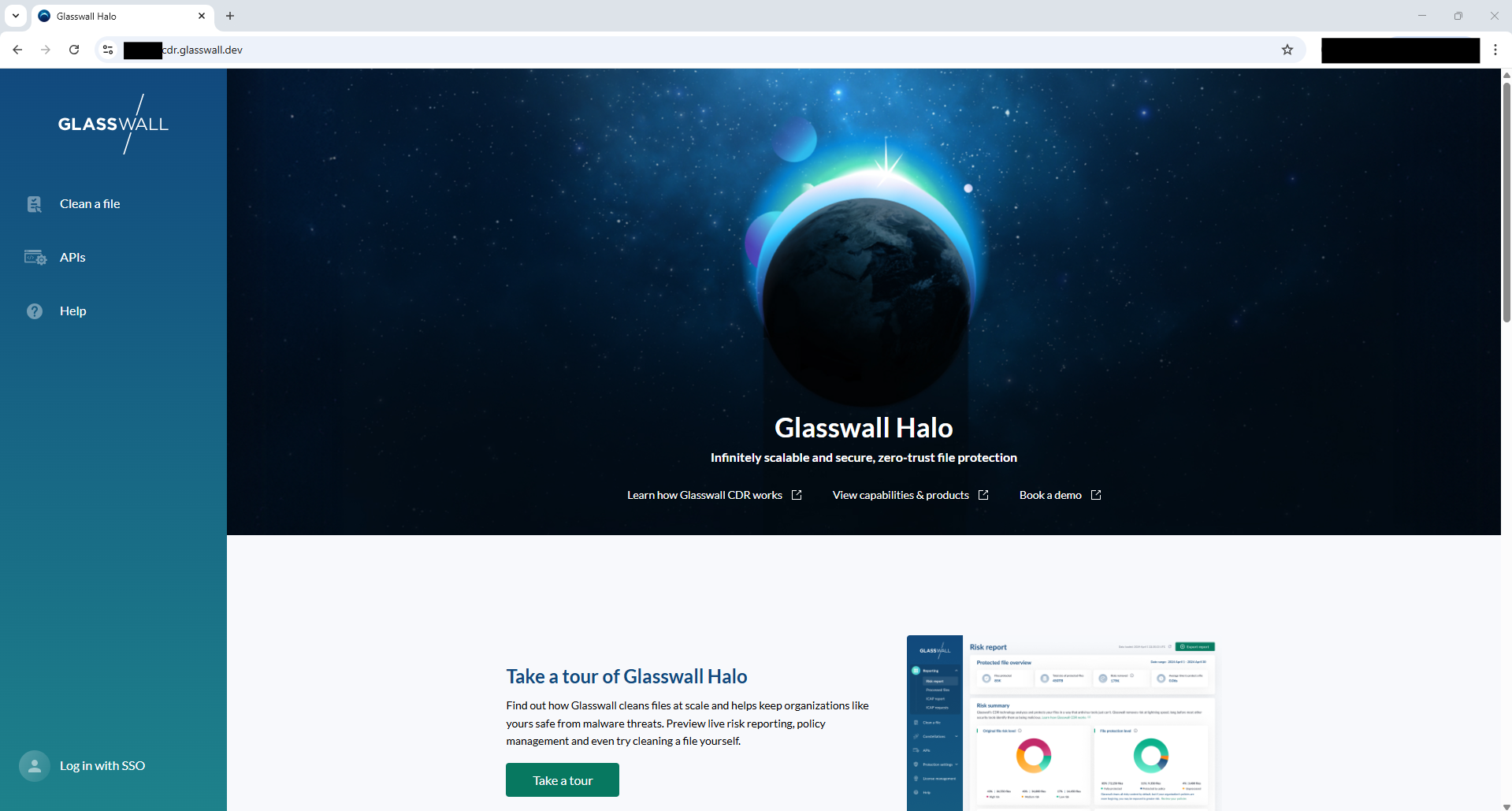
Access the Halo Portal in a Browser: Navigate to the Halo Portal URL (e.g.,
https://halo.dev.local/). -
The portal will detect no active session and redirect you to Keycloak for login. You will briefly see the portal page then an OIDC redirect.
-
You will land on Keycloak's Login page (the
glasswallrealm). The page might show "Glasswall Realm" or customized branding if any.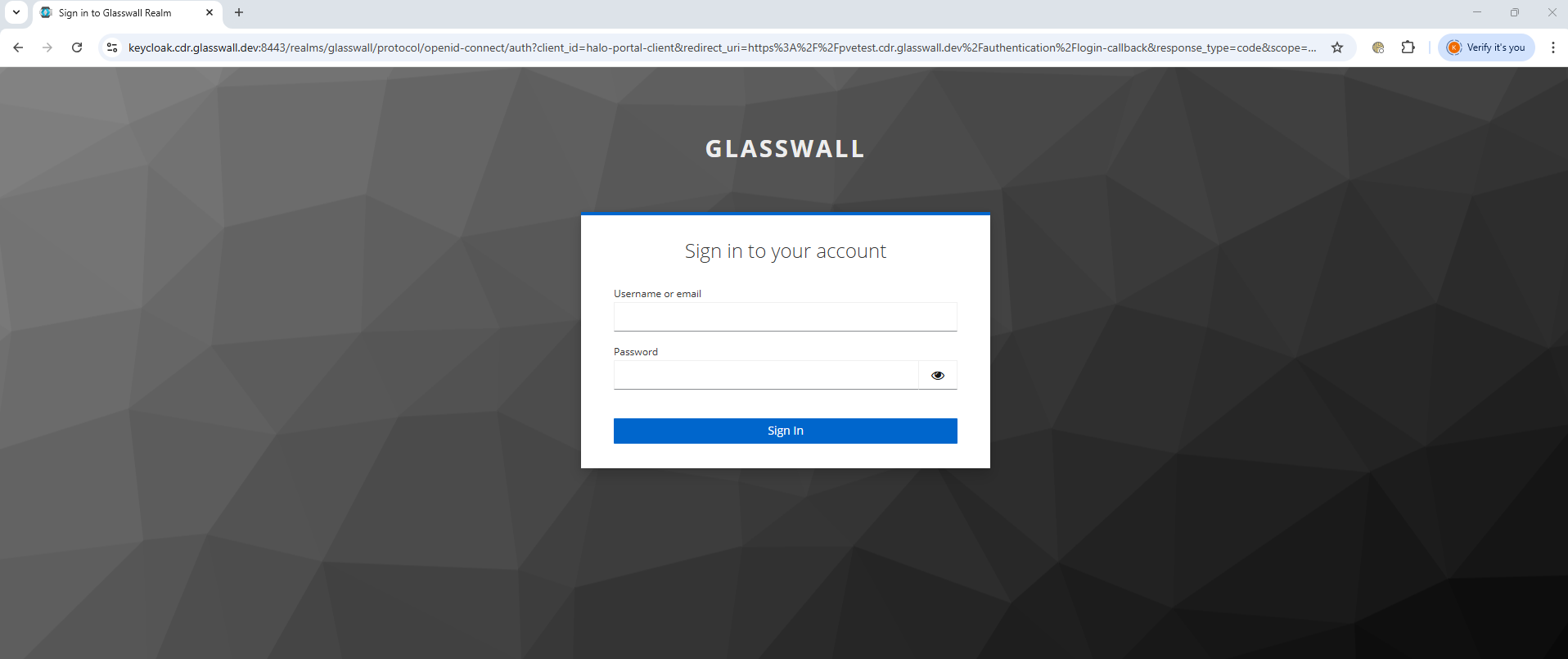
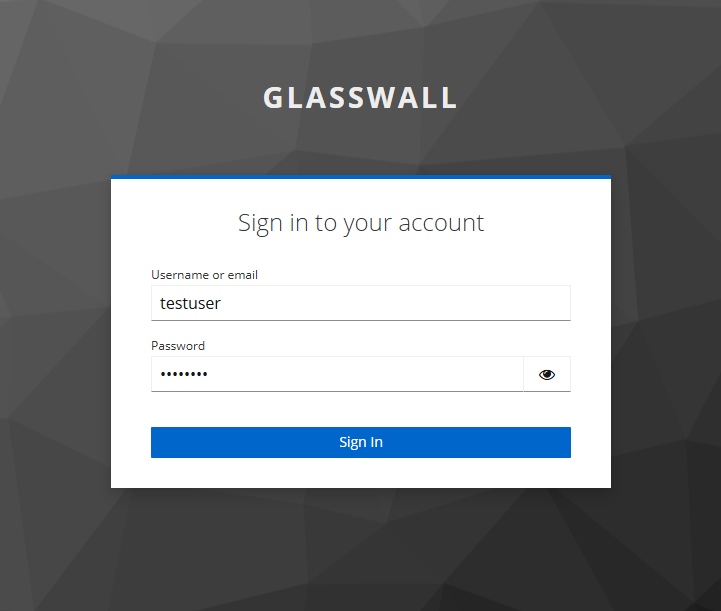
-
Login via Keycloak: Enter the credentials of the user you created (e.g.,
admin/ the password you set). -
Submit the login. Keycloak will authenticate and then redirect back to the portal's redirect URI.
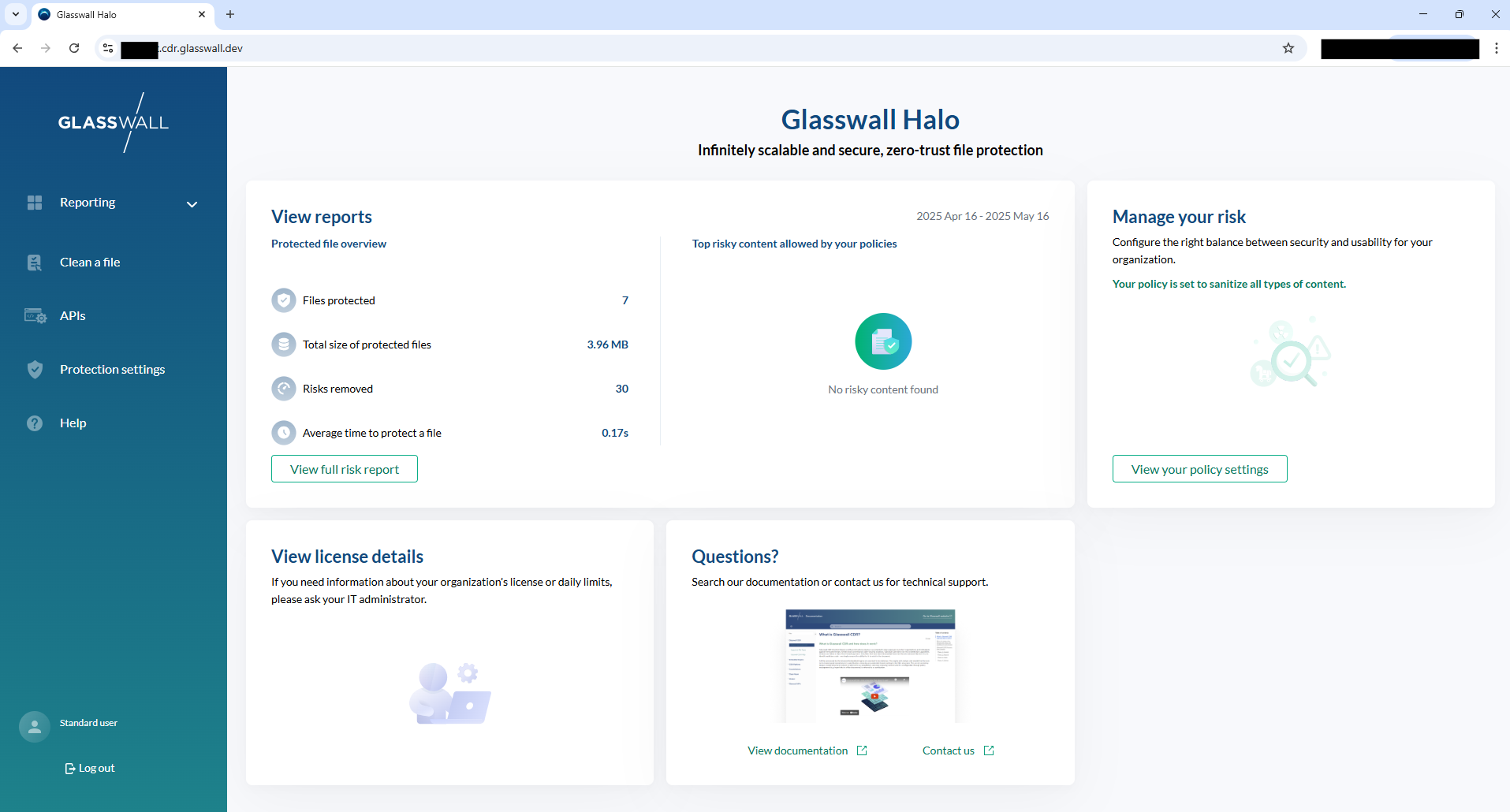
-
Portal Post-Login: Back on the Halo portal, you will receive the OAuth2 code from Keycloak, complete the login flow, and consider you authenticated.
-
Test navigating the portal.
-
Logout Test: This will log you out of the portal and Keycloak.
5. Troubleshooting
This section outlines potential issues encountered during Keycloak and Halo SSO integration.
1. Misconfigured Redirect URI
Symptoms:
- Receiving errors during login (e.g., "Invalid Redirect URI").
- Login attempts result in Keycloak error pages after credential submission.
Resolution Steps:
- In Keycloak, verify the Valid Redirect URIs and Web Origins settings for the
halo-portal-clientclient match exactly how users will access the Halo portal. - Ensure the URL scheme (https), hostname, port (if not default), and path are correct and match the portal configuration.
- Watch for missing or extra trailing slashes or misplaced wildcards in redirect URIs.
2. Clock Skew Issues
Symptoms:
- Intermittent token validation failures or sessions expiring immediately after login.
- Logs indicate JWT tokens are "not yet valid" or "expired".
Resolution Steps:
- Ensure all Keycloak and Halo VM/servers have synchronized system clocks.
3. TLS Trust Errors between Halo and Keycloak
Symptoms:
- SSL/TLS errors in logs, such as "certificate validation failed", "unable to verify issuer certificate", or "self-signed certificate in certificate chain".
- Halo services fail to connect to Keycloak, or fail authentication due to SSL handshake issues.
Resolution Steps:
- Make sure the CA or self-signed certificate used by Keycloak is trusted by all Halo containers and hosts.
- Confirm the
RequireHttpsMetadatais listed within your Helm configuration (truefor production deployments).
Additional Recommendations
- After any configuration change, test end-to-end login and token validation.