VMware Deployment
1. Login to your VMware ESXi console
2. In the Virtual Machines page in ESXi select Create / Register VM to open the new virtual machine window
3. Select Creation Type
- Select Deploy a virtual machine from OVF or OVA file and click NEXT
-dda5a2c55109e1a2613e202a26d5c54b.png)
4. Select OVF and VMDK files
- Enter a name for your Glasswall Halo VM
- Browse and select the Glasswall Glasswall Halo v2 OVA provided by Glasswall. Enter an appropriate name for the virtual machine.
-288698b88a72f1ed886359d8e34ea40b.png)
5. Select storage
- Select your storage type and datastore
-bd1f7a8243df870264925e06925a941e.png)
6. Deployment options
- Select the appropriate settings for the Network mappings and Disk provisioning.
- Uncheck Power on automatically
-18ab690827ba045015bd4fd0cec9073e.png)
7. Click Finish and wait for the import to complete.
8. For the best support and feature functionality it is suggested that the image be upgraded to the HOST client OS compatibility.
- Select Upgrade VM Compatibility under the Actions tab.
- Select the appropriate minimum level of compatibility from the drop-down (in our example it is ESXi 6.7/8.0).
NOTE: this process might negatively impact the performance of other client systems on the host, so it might be best to perform it in less critical windows.
- Please note the acknowledgement of potential performance impact and click Yes.
-cdab0aa1af18dc0191a684becefba8bd.png)
9.1. Edit settings (Virtual hardware)
Select Edit Settings and modify vCPU count to (minimum) 16, Memory to 32GB Ram, and Hard disk 1 to (minimum) 500 GB SSD/HD.
-544c6d3ccd8903c58998062409b00477.png)
9.2. Edit settings (VM options)
- Select the VM Options tab to open and amend the server settings.
NOTE: With the upgrade completed you can now select the correct Guest Operating System.
- Please select Linux as Guest OS and Red Hat Enterprise Linux 9 (64-bit) as the Guest OS Version.
- Click Save.
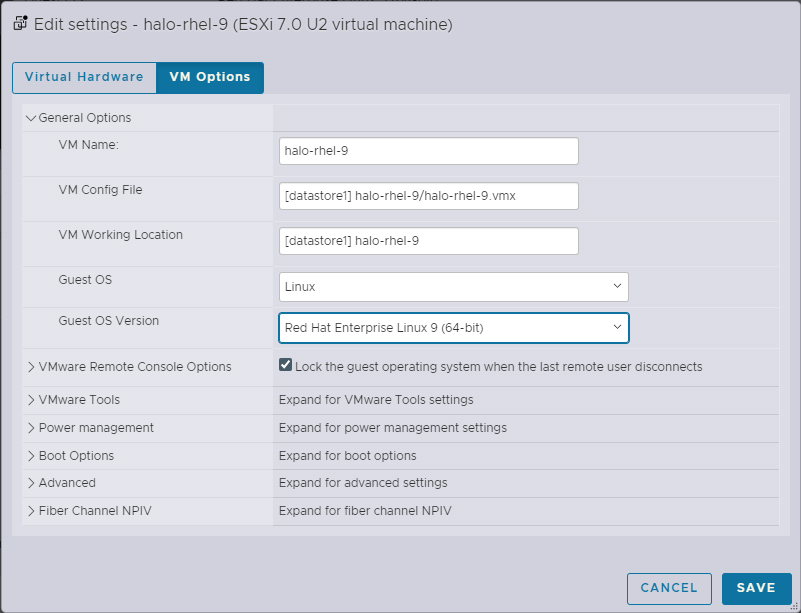
10. Power on the machine
- Verify that the Compatibility, CPUs and Memory allocation are all correct.
- Power on and open the VM
- Login with the credentials provided by your Glasswall Representative.
11. Password change
- For security measures it is requested to change the default password shared from Glasswall once you login
- Once the shared credentials are added, add a new password for the VM
WARNING: Password should be 15 char long, with a combination of uppercase letters, lowercase letters, numbers, and special charachters. Moreover, password should be without any repeating chars
12. NetworkManager Configuration
Note: If your network has a DHCP server, the VM will be assigned an IP address automatically and this step can be skipped.
Per your network defined configurations and boundaries
12.1 Before configuring the VMs network we need to know the MAC address of the ethernet the machine is running
- Run nmcli in the console to get which network the VM is using
12.2 Once we know which network to edit, run the following command to launch the Network Manager tool and select Edit a connection
nmtui
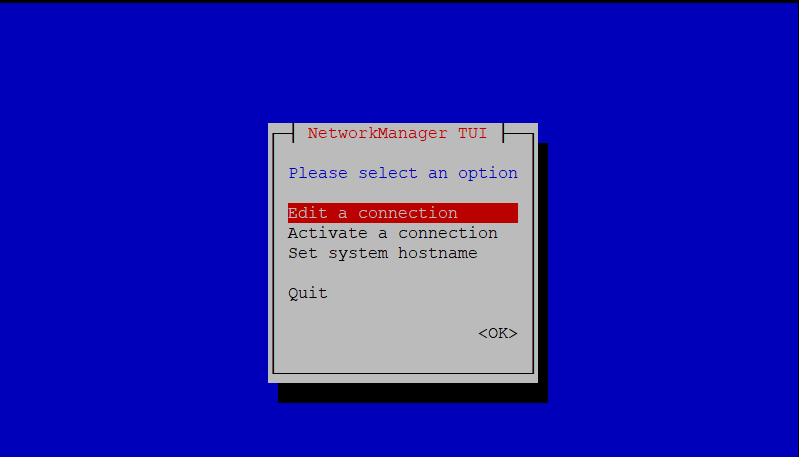
12.3 Based on your configuration requirements:
- Add Network Adapter or Edit Connection
- In our example we are gonna edit the connection the VM is using

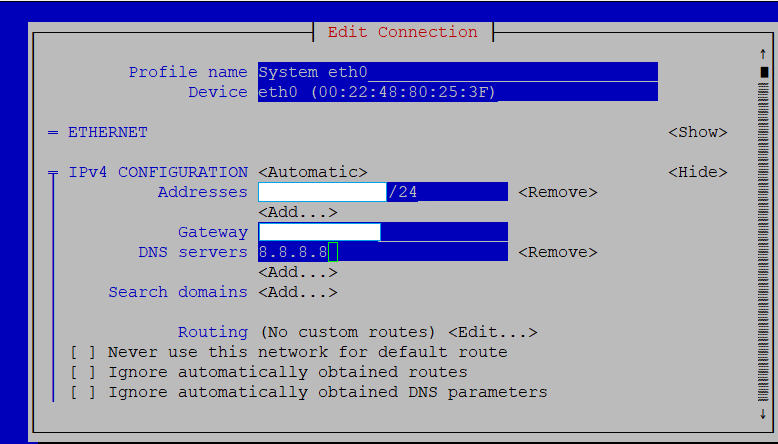
12.4 Select Show for the IPv4 Configuration, this will provide options to edit IP address, Gateway, DNS Server.
Note: if you would like to setup your OVA without internet access, your DNS IP range should be set the same as your VM IP.
- Once IP address, Gateway and DNS is provided, scroll to the bottom and click OK
12.5 Go back to the main page of nmtui and select Activate a connection and ensure your connection is set to activated.
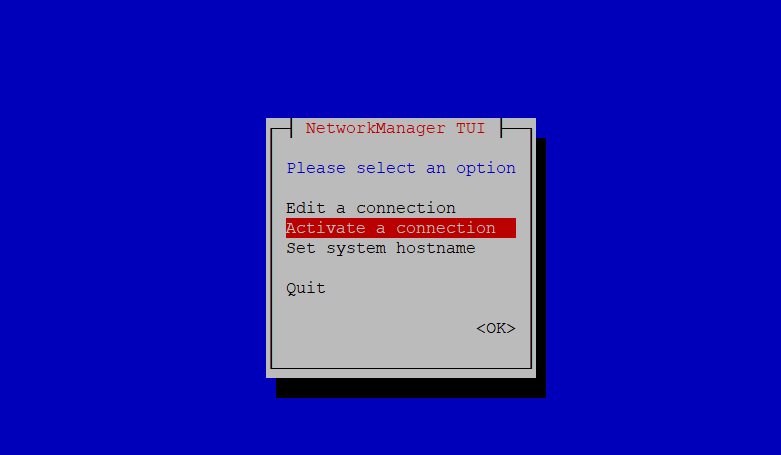

12.6 Exit and execute the following command:
sudo systemctl restart NetworkManager
13. Start the Glasswall Halo services
Note: If your network has a DHCP server, this step can be skipped as the RKE2 server will be started automatically by cloud init.
Proceed with executing the following command to start the Glasswall Halo:
- Command:
bash start_halo.sh
- Once the script has completed, confirm all of the Glasswall Halo services and Pods are running with the following command:
kubectl get pods
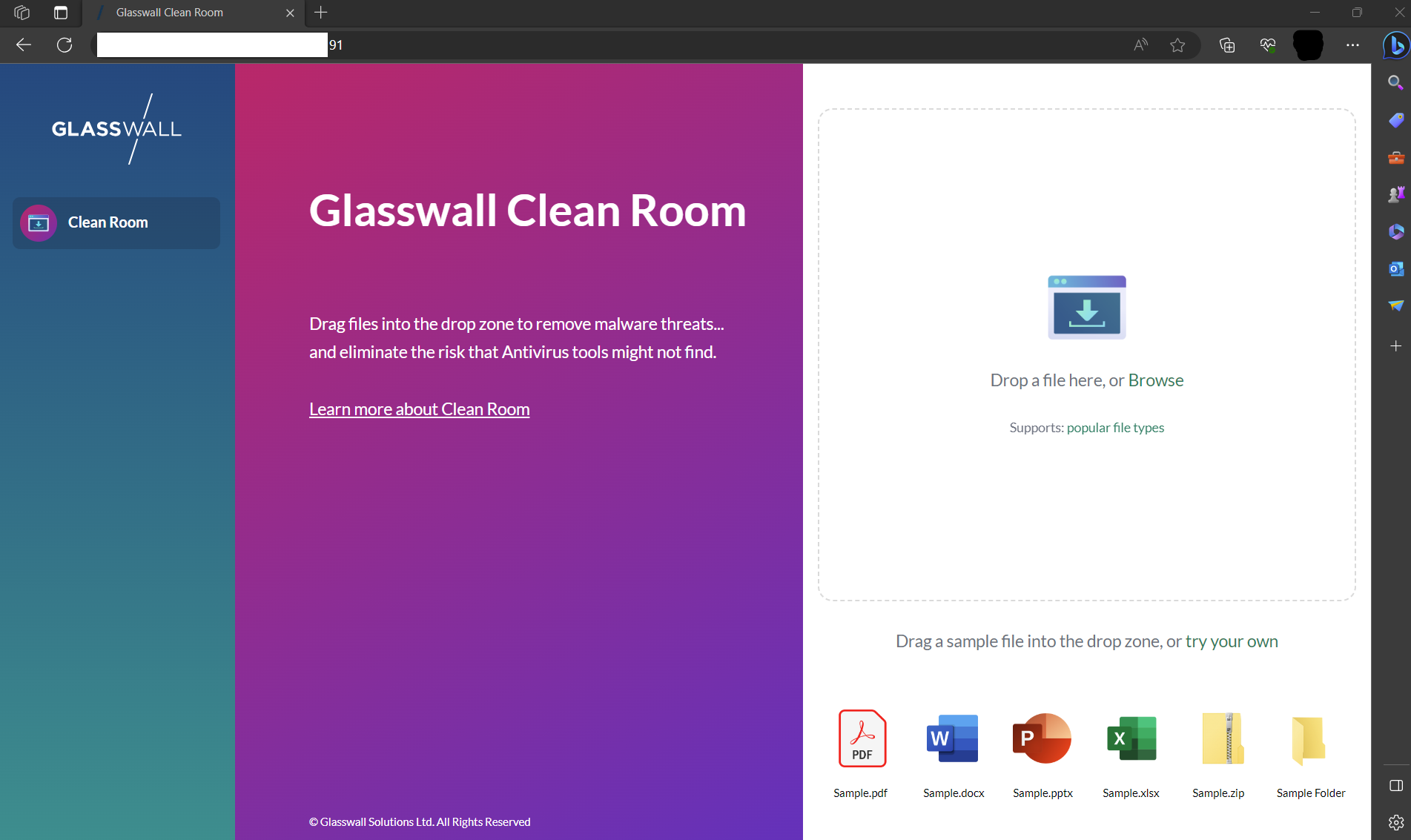
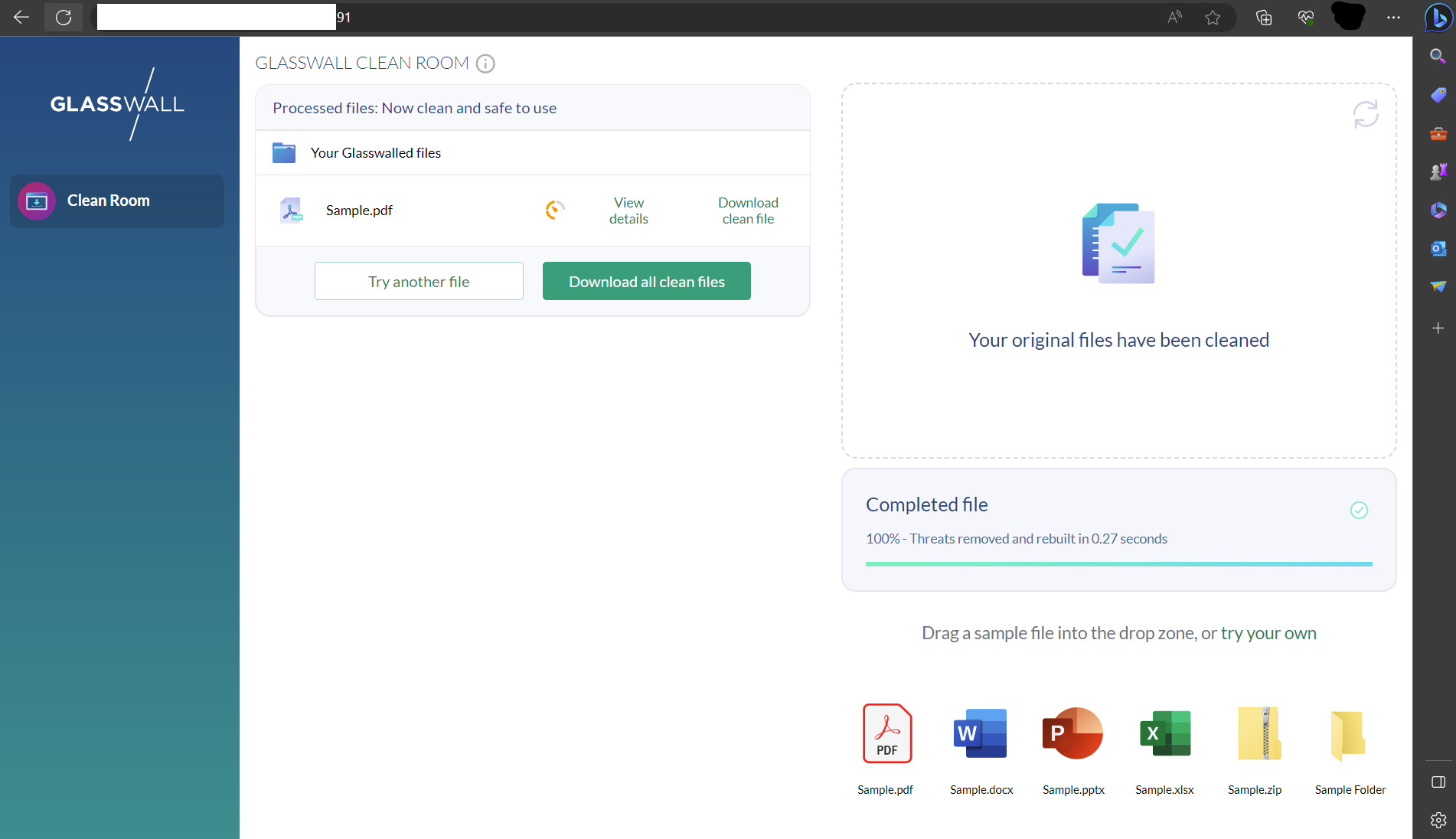
14. Access Glasswall Clean Room
- Per your network configuration and or domain configuration, you will now be able to access Cleanroom through the domain name and or ip address assigned to your VM.
- You can run the following command to confirm network status.
sudo netstat -tlnp
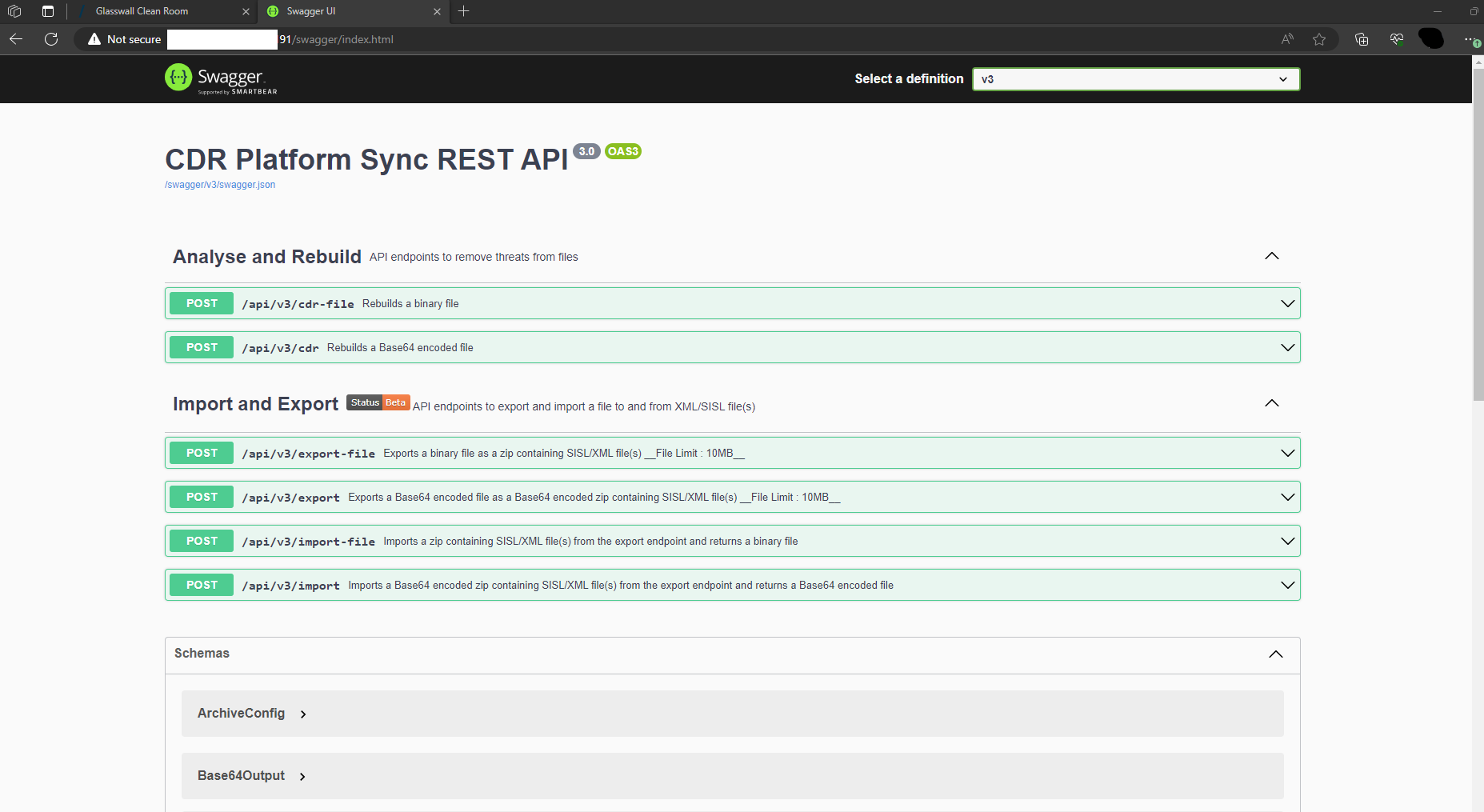
15. Access Glasswall Swagger API Endpoints
- Navigate to the following to access the Glasswall Halo API Endpoints: https://<Your Domain or IP>/swagger/index.html
16. Validating Deployment
You are able to validate the deployment by using our API Health Check feature.